
How to send a file on Messenger
Need to share a PDF, a document or an archive in a conversation? You can send a file on Messenger straight from your phone. Here's how to do it, step by step.
Prefer a video? Watch the full tutorial below.
Sending a file on Messenger, step by step
Open the "Files" menu
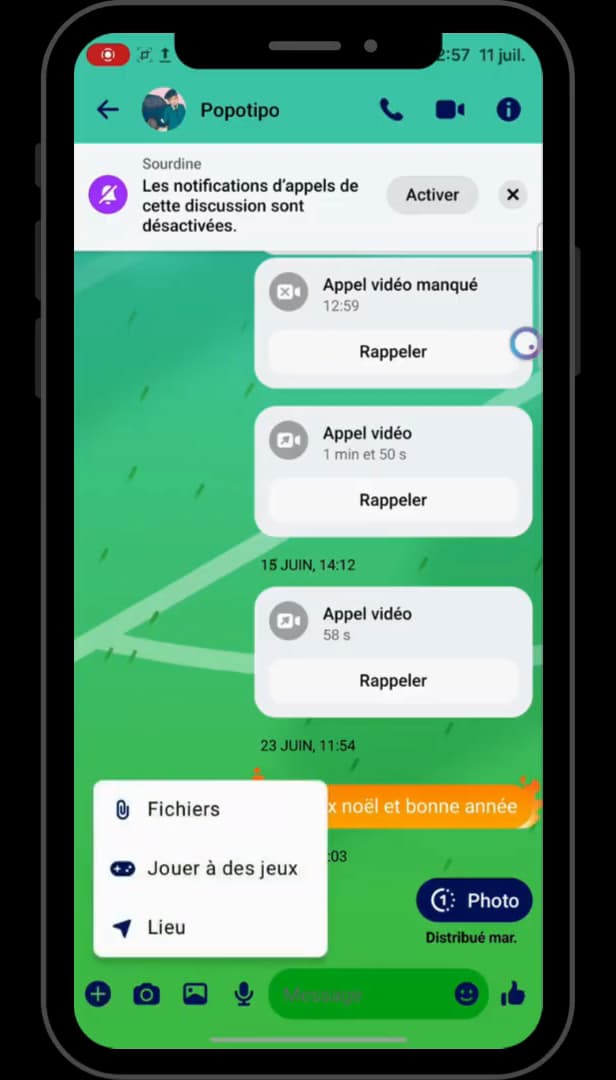
"Files" lets you attach a document to your message. In a conversation, tap "+" (to the left of the text field), then "Files".
Choose the file to send
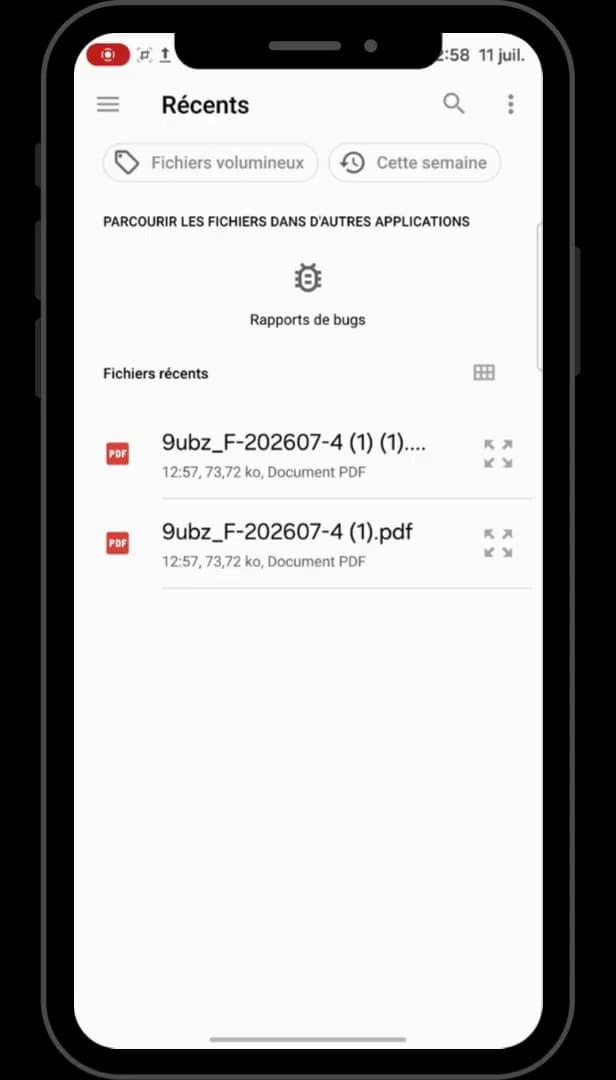
Pick the document from your recent files or your folders. Browse "Recent" or your folders, then select the file (PDF, document, etc.).
Send it
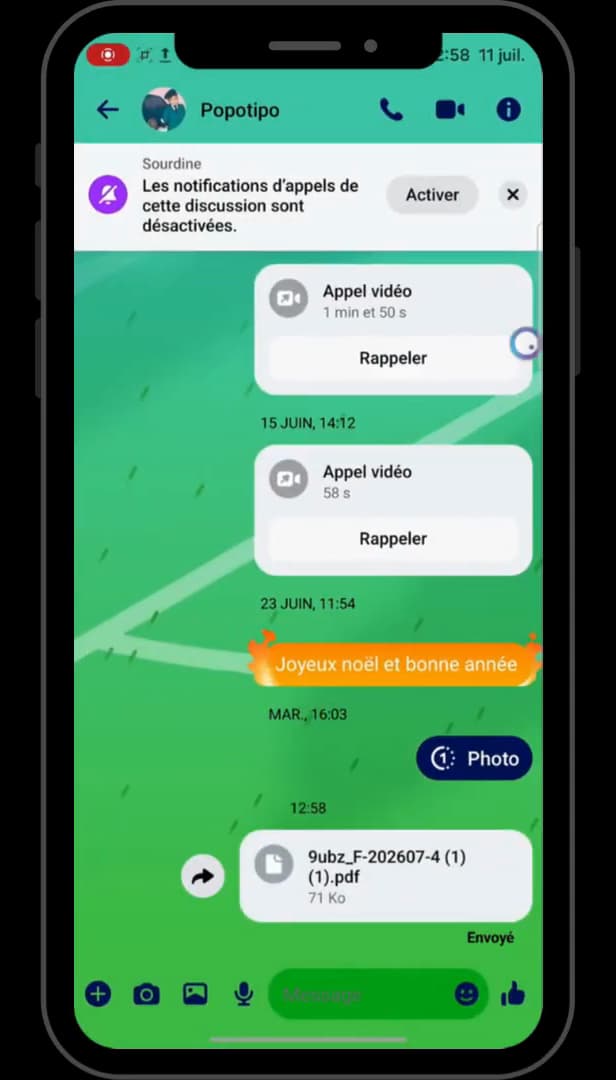
The file appears in the chat, ready to download. The file is added to the conversation: tap "Send".
Good to know
The recipient gets the file and can "download" it. Messenger accepts many formats ("PDFs, documents, archives"), up to "25 MB" per file.
Good to know
- The size is limited to "25 MB": for a larger file, use a Drive link instead.
- Sent files stay "available" in the conversation, in the media tab.
- For a "photo or video", use the gallery icon rather than "Files".
Frequently asked questions
- What types of files can I send on Messenger?
- Most common formats: PDFs, Word documents, spreadsheets, ZIP archives, and so on, within the allowed size limit.
- What is the maximum file size?
- About 25 MB per file. Beyond that, share a link instead (Google Drive, WeTransfer, etc.).
- Where can I find a file I received?
- In the conversation, or via the chat's media/files tab, where all the exchanged documents are gathered together.
Related tutorials
 MessengerHow to send your location on MessengerWant to share where you are on Messenger? Here's how to send your live location, step by step.
 MessengerHow to Turn On Messenger NotificationsNot getting your Messenger notifications anymore? Here's how to turn them back on from the app, step by step.
 MessengerHow to Hide the Content of Messenger NotificationsWant to hide the message preview from Messenger on your lock screen? Here's how to do it, step by step.
 MessengerHow to Find an Old Message on MessengerLooking for an old message in a Messenger chat? Here's how to find it, step by step.