
How to Hide the Content of Messenger Notifications
Don't want your message content showing up on your lock screen? You can hide the content of Messenger notifications from your phone's settings. Here's how to do it, step by step.
Prefer a video? Watch the full tutorial below.
Hiding the content of Messenger notifications, step by step
Open the notification settings
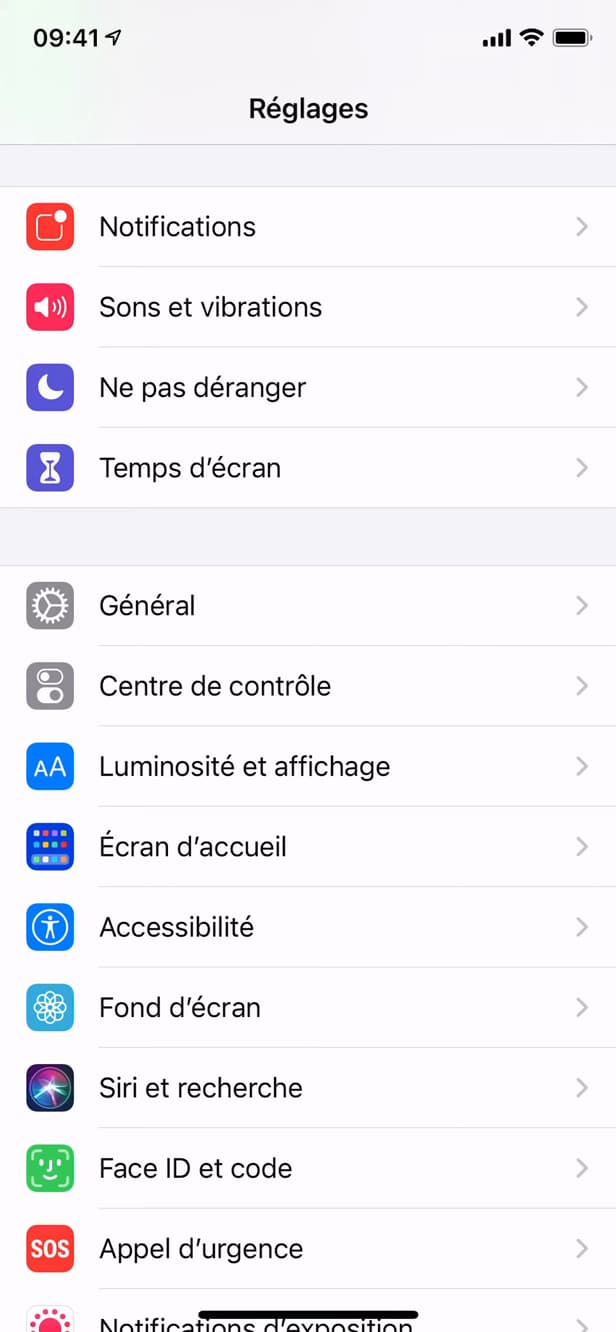
Each app has its own notification settings on the phone. In your phone's "Settings," open "Notifications," then "Messenger."
Open "Show Previews"
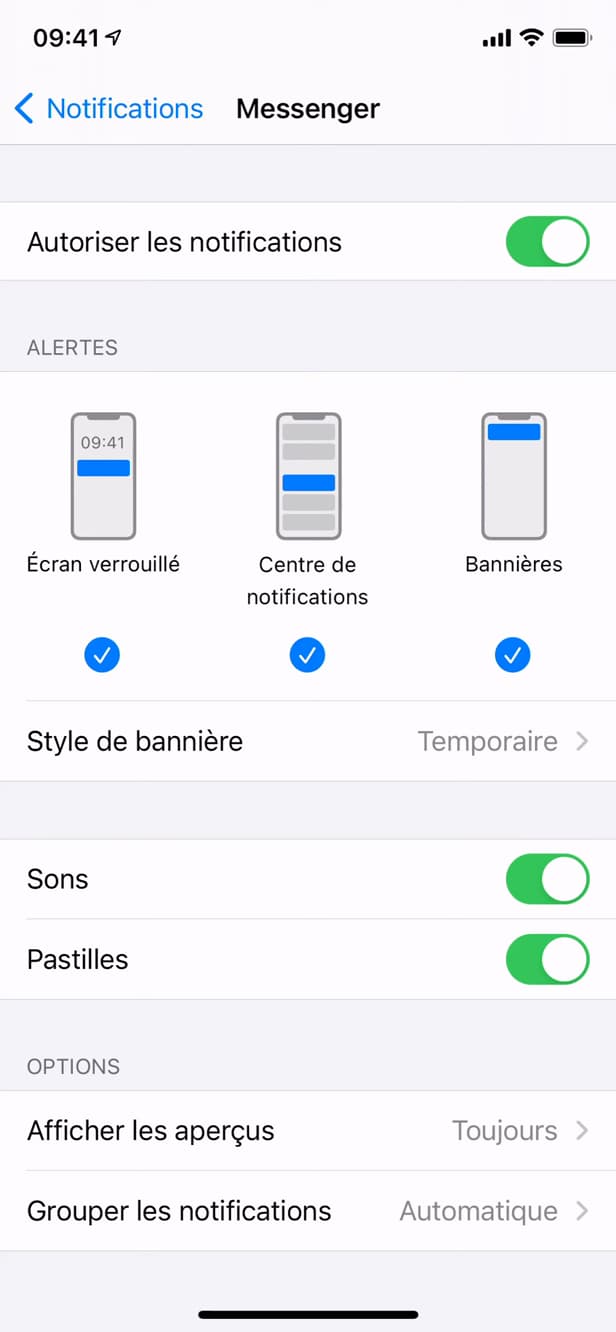
"Show Previews" controls what appears on the screen. In the Messenger notification settings, tap "Show Previews."
Choose "Never"
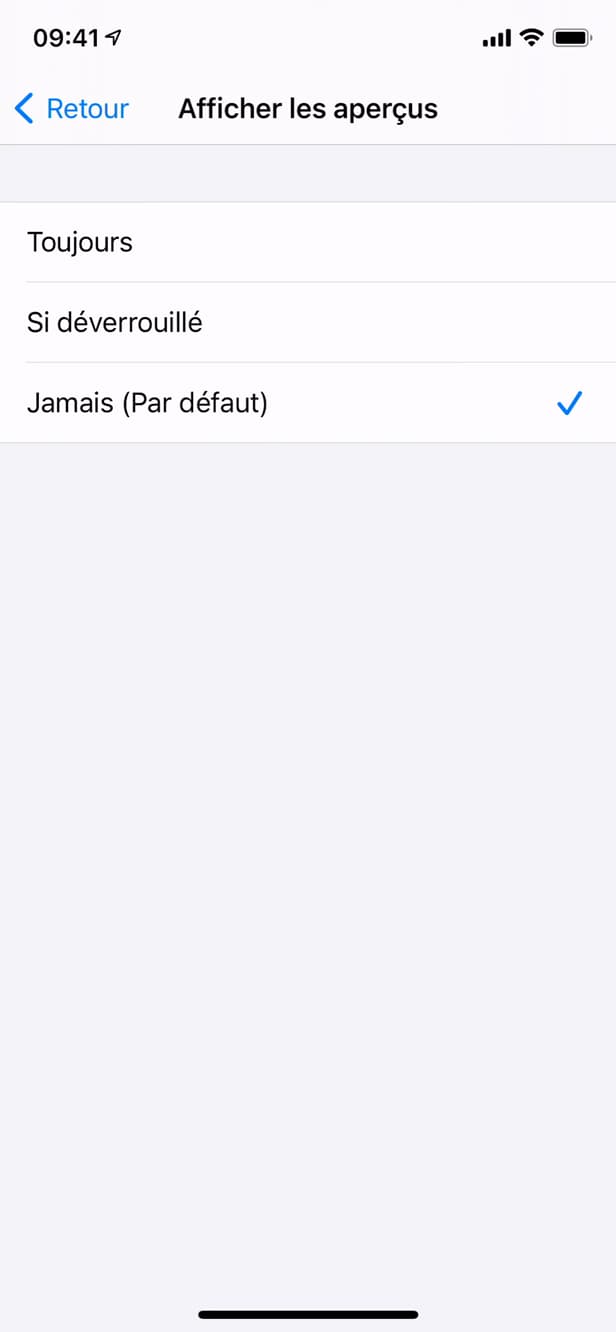
"Never" hides the content, leaving only "Messenger" showing. Select "Never": the sender's name and the message text will be hidden.
Good to know
Your notifications now only say "Messenger," with no sender name or text. You stay "notified" of a message without exposing its content.
Good to know
- "When Unlocked" shows the content only when the phone is unlocked (via Face ID).
- The setting is done "app by app" in the phone's Notifications.
- You still receive notifications; only the "preview" is hidden.
Frequently asked questions
- Will I still receive notifications?
- Yes. You're still alerted when a message arrives; only the content (name + text) is hidden.
- What's the difference between "Never" and "When Unlocked"?
- "Never" always hides the content; "When Unlocked" shows it only once you've unlocked the phone (Face ID / passcode).
- Does this setting apply to Facebook too?
- No. It's specific to Messenger. Set "Show Previews" separately for each app.
Related tutorials
 MessengerHow to Turn On Messenger NotificationsNot getting your Messenger notifications anymore? Here's how to turn them back on from the app, step by step.
 MessengerHow to Find an Old Message on MessengerLooking for an old message in a Messenger chat? Here's how to find it, step by step.
 MessengerHow to Block Someone on Messenger Without Notifying ThemWant to block someone on Messenger discreetly? Good news: blocking sends no notification. Here's how to do it, step by step.
 MessengerHow to recover deleted messages on MessengerYour Messenger messages have vanished? Here's the official method, step by step, to recover and view your deleted conversations by downloading your Facebook information, on iPhone and Android.