
How to Turn On Messenger Notifications
Missing messages because notifications are off? You can turn on Messenger notifications right from the app. Here's how to do it, step by step.
Prefer a video? Watch the full tutorial below.
Turning on Messenger notifications, step by step
Open "Sounds and notifications"
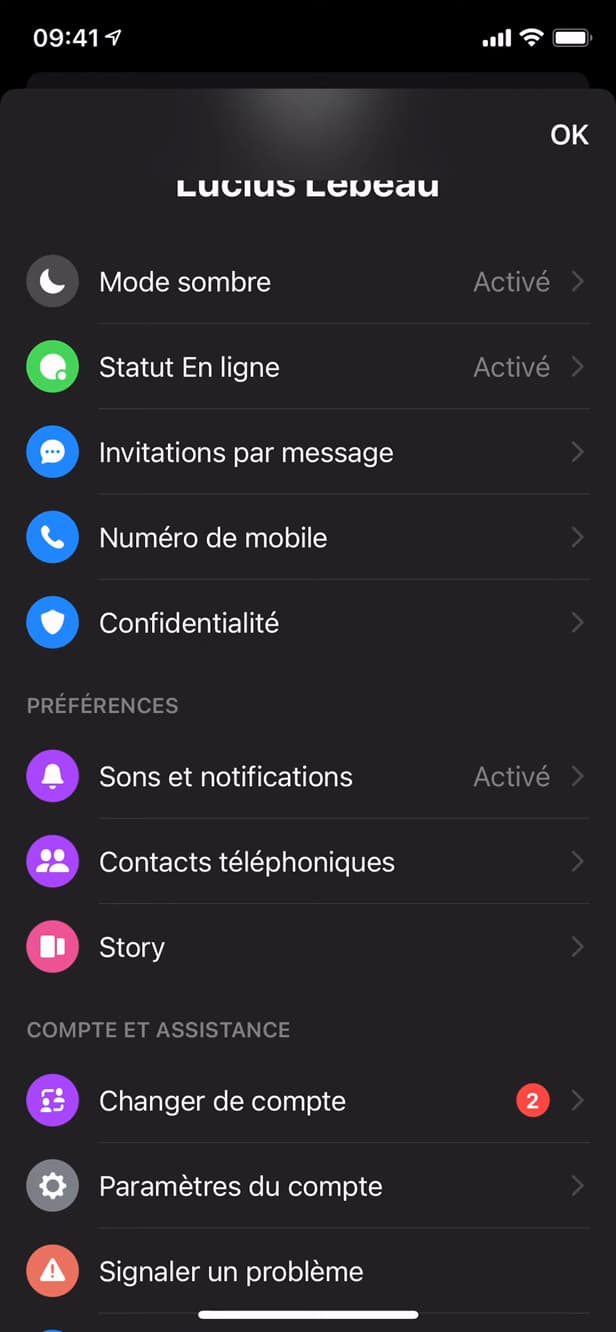
"Sounds and notifications" controls Messenger's alerts. Open "Menu" (your profile picture), then tap "Sounds and notifications".
Turn off "Do Not Disturb"
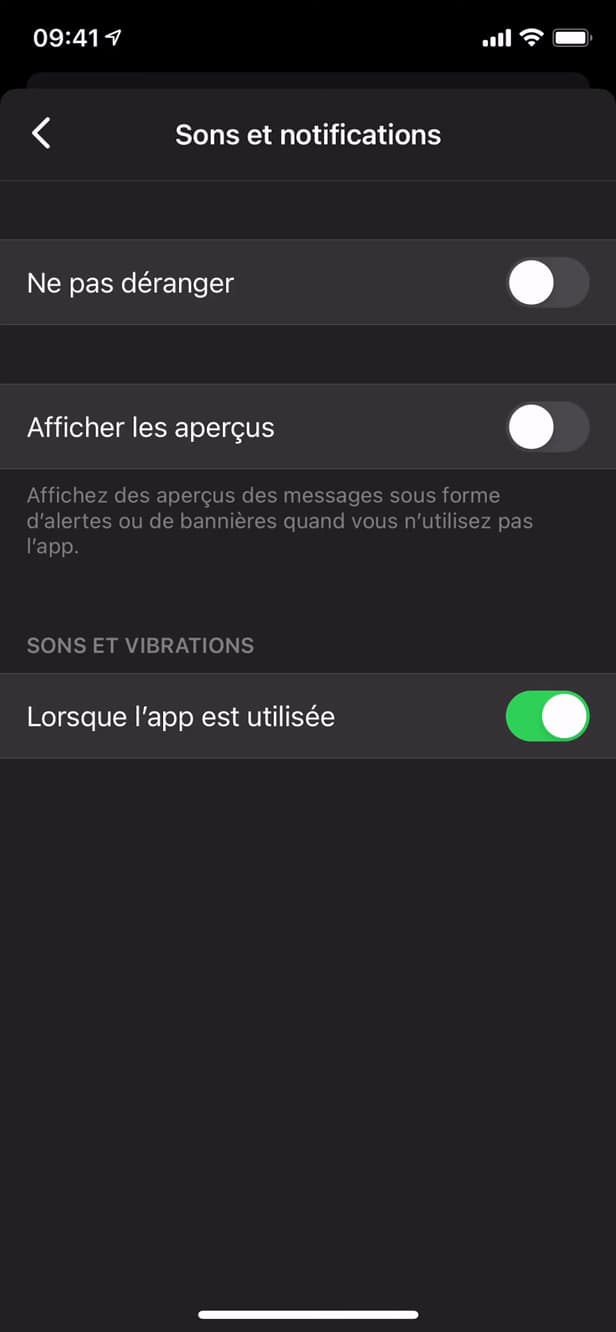
"Do Not Disturb" mutes every notification while it's on. Make sure "Do Not Disturb" is turned off.
Turn on "Show previews"
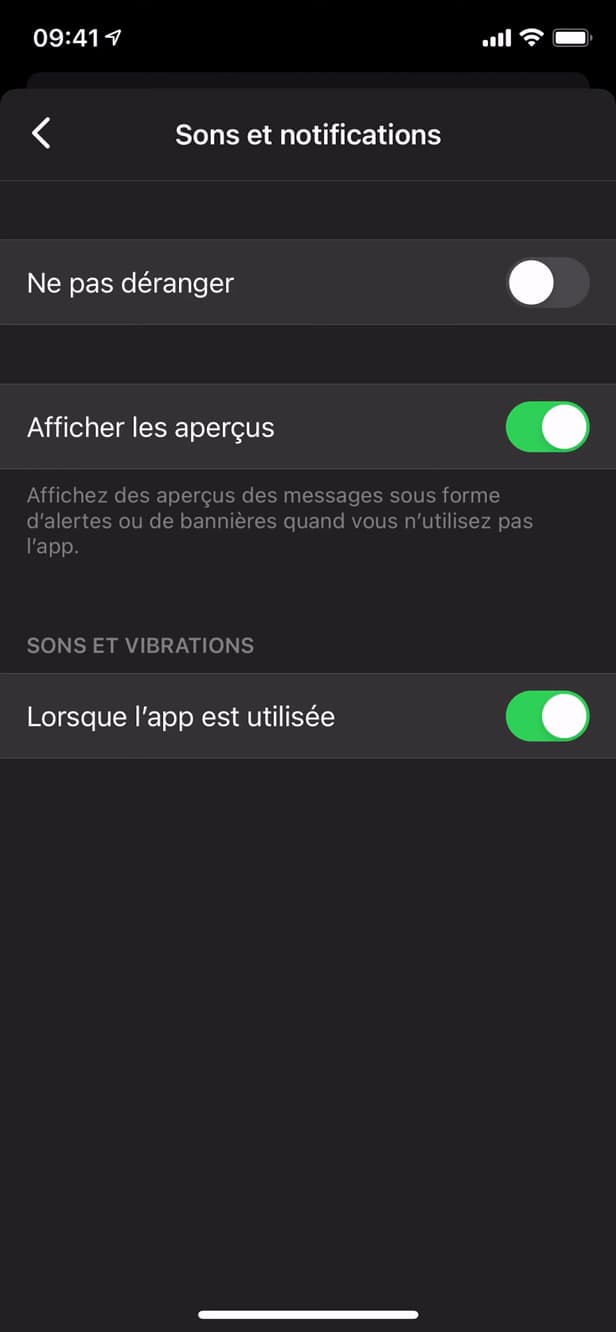
Previews show the message right inside the alert. Turn on "Show previews" and "sounds" so you're alerted to every message.
Good to know
You're getting your Messenger "notifications" again, with a "preview and sound". If nothing comes through, also check your notifications "at the phone level".
Good to know
- If alerts are still missing, check your "Phone Settings" › Notifications › Messenger.
- "Do Not Disturb" takes priority: turn it off to receive everything.
- You can mute notifications "for a single conversation" without turning everything off.
Frequently asked questions
- I turned on previews but I'm not getting anything, why?
- Check notifications at the phone level: Settings › Notifications › Messenger must be allowed.
- What is "Do Not Disturb" for?
- It temporarily pauses all Messenger notifications. Turn it off to receive alerts again.
- Can you mute notifications for just one chat?
- Yes. In the conversation, open the options and turn on mute mode just for that thread.
Related tutorials
 MessengerHow to Hide the Content of Messenger NotificationsWant to hide the message preview from Messenger on your lock screen? Here's how to do it, step by step.
 MessengerHow to Find an Old Message on MessengerLooking for an old message in a Messenger chat? Here's how to find it, step by step.
 MessengerHow to log out of MessengerWant to log out of Messenger on your phone? Here's how to do it, step by step.
 MessengerHow to send a file on MessengerWant to send a PDF or a document on Messenger? Here's how to attach a file, step by step.