
How to recover deleted messages on Messenger
Are you trying to recover deleted messages on Messenger, or simply to view a deleted conversation you thought was lost? Good news: even though Messenger shows no "restore" button, Meta keeps a history of your chats on its servers. The only official method is to download your Facebook information — a backup that contains your messages, including old deleted conversations. Follow this guide all the way through: in under 5 minutes, you'll know exactly where to click, on iPhone and Android alike, to get your Messenger messages back and fix the problem once and for all.
Prefer a video? Watch the full tutorial below.
Recovering a deleted message on Facebook Messenger, step by step
Open the Facebook app on your phone
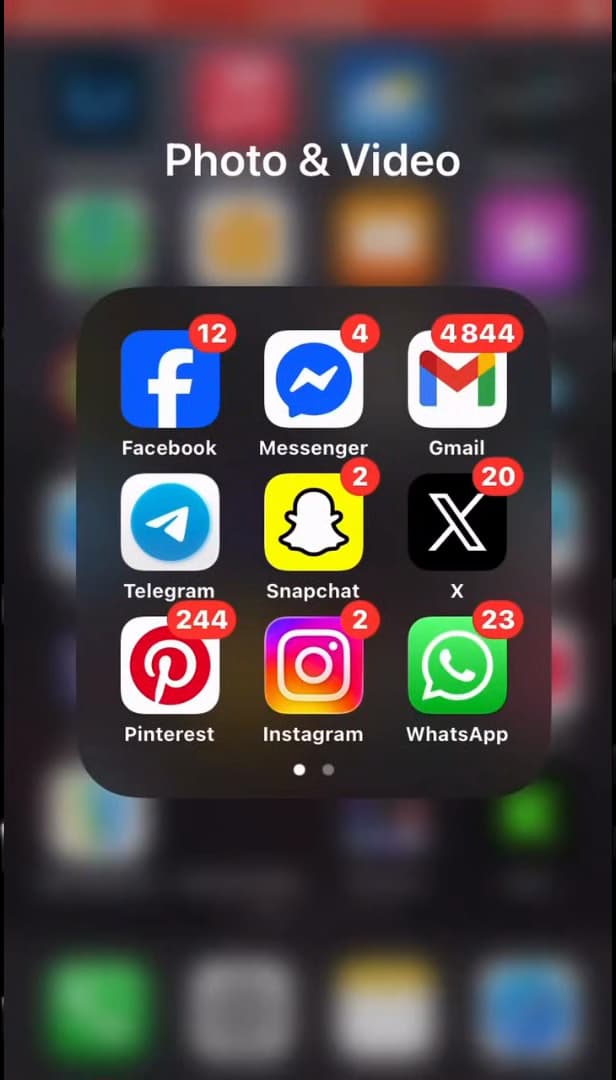
We start from the Facebook app, not Messenger: it's the one that gives access to your data. Recovery is done from "Facebook", not from Messenger. On your phone's home screen, tap the "Facebook" icon (the white "f" on a blue background) and log in to your account if you haven't already.
Open the Facebook menu
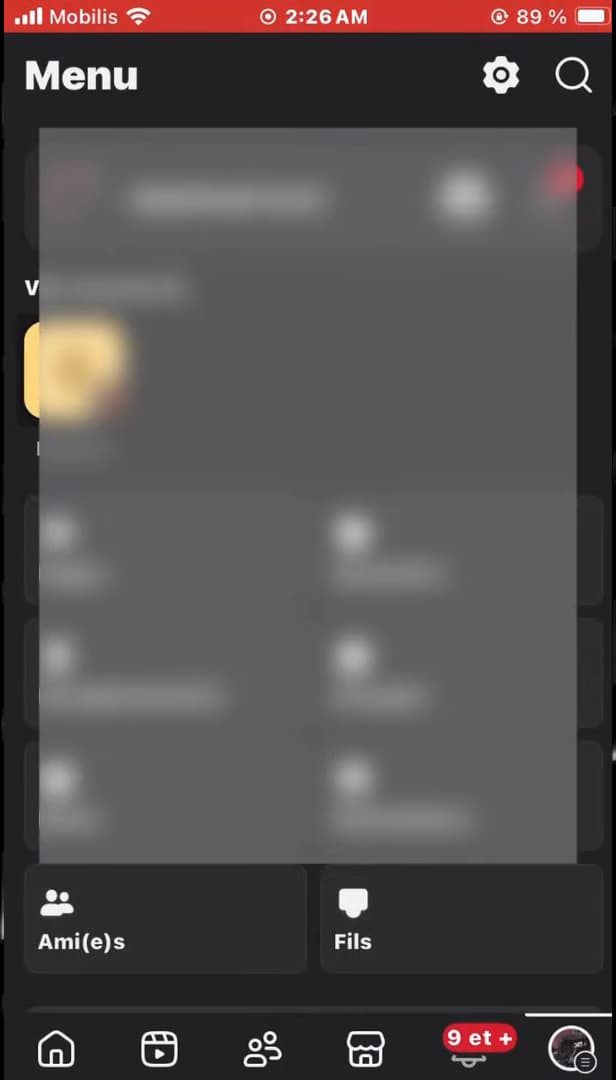
The menu gathers your shortcuts and access to your account settings. Tap the "menu" icon: the three horizontal bars (☰) or your "profile photo", at the bottom right on iPhone and the top right on Android. The main Facebook menu opens.
Open Facebook's Settings and privacy
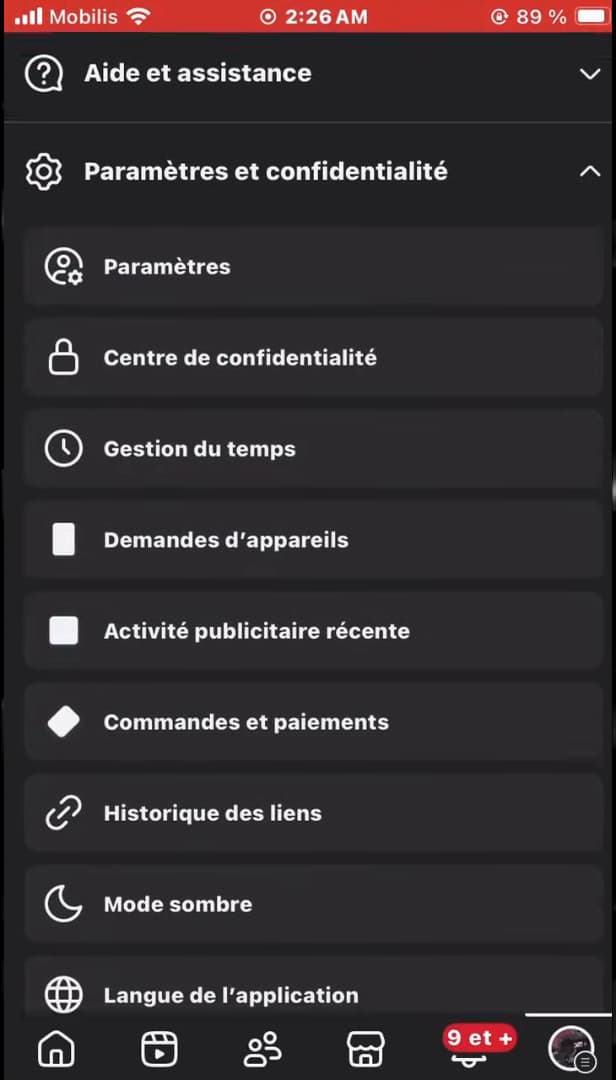
"Settings and privacy" is right at the bottom of the Facebook menu. Scroll down the menu to "Settings and privacy" (just before "Help and support"), tap it, then tap "Settings".
Open "Your information and permissions"
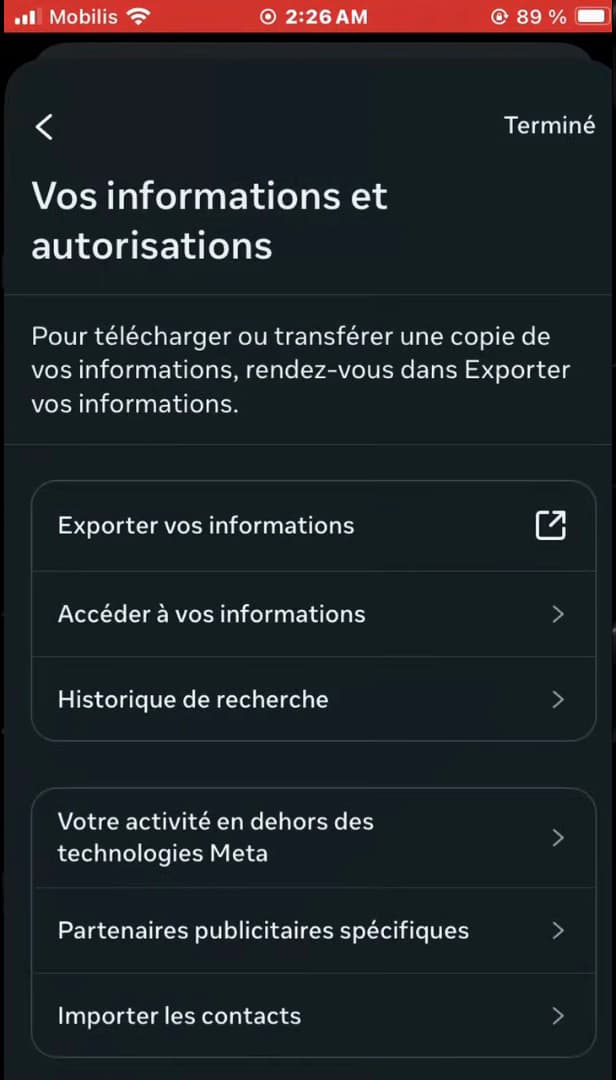
The Meta Accounts Center links Facebook, Instagram and your personal information. At the top of settings, in the "Accounts Center" (the Meta section), tap "Your information and permissions". This is where Meta centralizes the export of your data.
Select "Download your information"
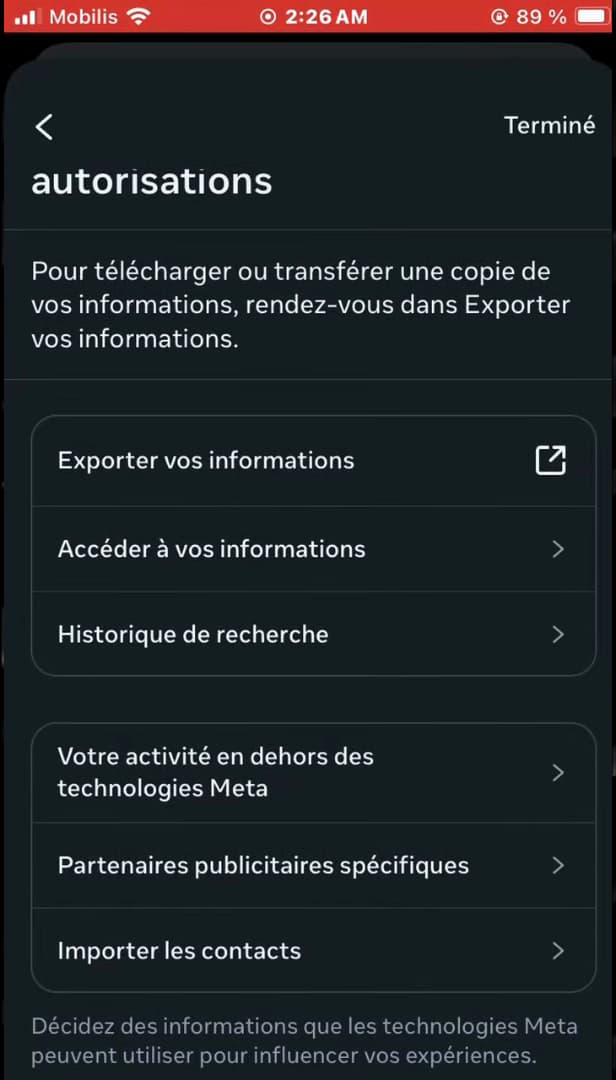
"Download your information" is the first option: it's the one that creates the archive. Tap "Download your information", the first item in the list. This feature prepares a "downloadable copy" of your Facebook data, including your messages.
Create the export of your Messenger messages
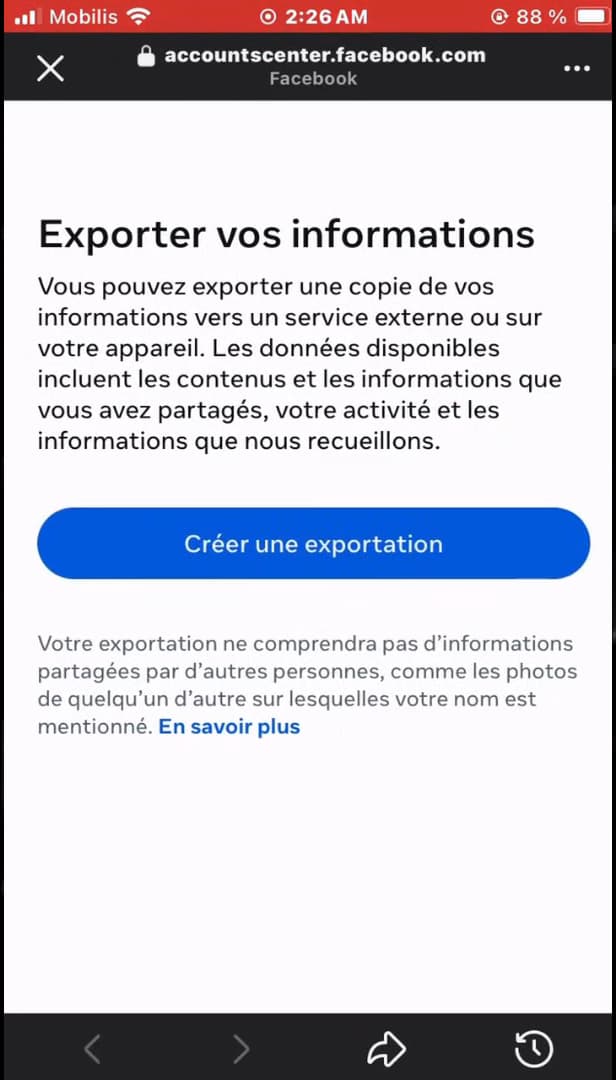
On the "Download your information" page, the blue "Create export" button starts the backup. Tap "Create export". For a lighter file, tap "Select types of information" and check only "Messages". Choose the date range ("All time" if you're not sure) and the quality, then confirm with "Create files". Once the backup is ready, open "Available files", tap "Download", enter your password and open the file: your conversations, even those deleted from Messenger, are in there.
Good to know
This method is the "only official way" to recover deleted messages on Messenger: it taps into the archive Meta keeps on its servers. Keep in mind, though, that messages "permanently erased" on both sides, protected by end-to-end encryption, can't always be recovered.
How to open the downloaded file
Once you've retrieved the archive, unzip the "ZIP" folder, open the "index.html" file in your browser, then go to the "Your messages" section to browse all your conversations.
Other ways to view deleted messages on Messenger
- "Archived chats": a "vanished" message is sometimes just archived. Open the list of archived chats, then choose "Unarchive".
- "Ask the other person": deleting a message on your side doesn't erase it on the other person's side, and they can send you a copy back.
- "Phone backups": a Google Drive (Android) or iCloud (iPhone) backup may contain older chats.
- "Notification history (Android)": if the message was received less than 24 hours ago, it may still show up in the notification history.
By combining these approaches, you maximize your chances of "finding a deleted conversation on Messenger".
Frequently asked questions
- Can you really view deleted messages on Messenger?
- Yes, partly. There's no direct restore button, but by downloading your Facebook information you recover the chat history that Meta keeps. Messages permanently erased server-side, however, remain unrecoverable.
- How do I find a deleted conversation on Messenger without software?
- Use the official method described above: Facebook › Settings › Your information and permissions › Download your information. No third-party software is needed, and beware of apps that promise to recover your messages.
- Where is the file once it's downloaded?
- The file arrives as a ZIP archive in your downloads. Unzip it, open the index.html file in a browser, then open the "Your messages" section to read your conversations.
- How long does Facebook take to prepare the file?
- From a few minutes to several hours depending on the amount of data. Facebook sends you a notification as soon as the file is ready to download.
- Does this method work on iPhone and Android?
- Yes. The steps are identical in the Facebook app on iPhone and Android, and the feature is also accessible from a computer.
Related tutorials
 MessengerHow to Find an Old Message on MessengerLooking for an old message in a Messenger chat? Here's how to find it, step by step.
 MessengerHow to Hide the Content of Messenger NotificationsWant to hide the message preview from Messenger on your lock screen? Here's how to do it, step by step.
 MessengerHow to Turn On Messenger NotificationsNot getting your Messenger notifications anymore? Here's how to turn them back on from the app, step by step.
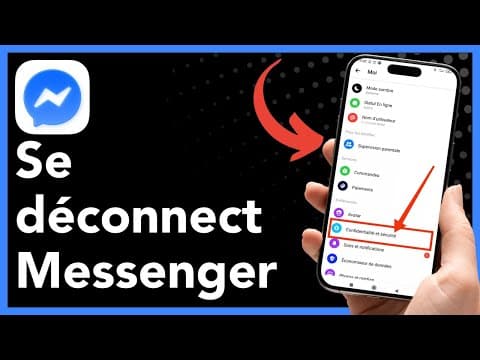 MessengerHow to log out of MessengerWant to log out of Messenger on your phone? Here's how to do it, step by step.