
How to log out of Messenger
Lending your phone or switching accounts? You can log out of Messenger in a few taps. Here's how to do it, step by step.
Prefer a video? Watch the full tutorial below.
Logging out of Messenger, step by step
Open Settings
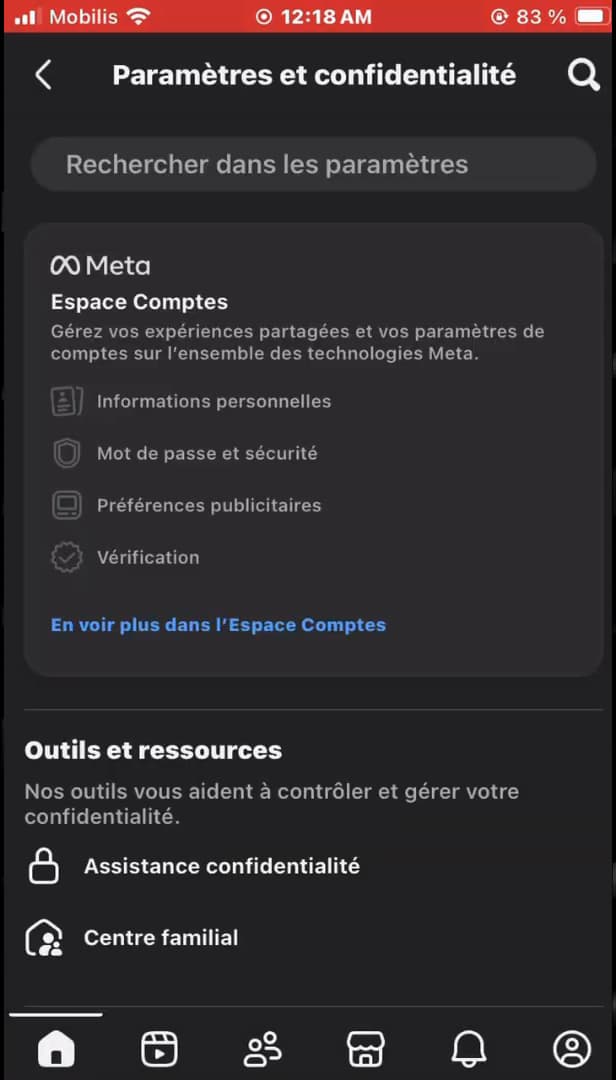
Open Settings from your profile photo. Open "Menu" (your profile photo), then "Settings & privacy" › "Settings".
Scroll down to "Log out"
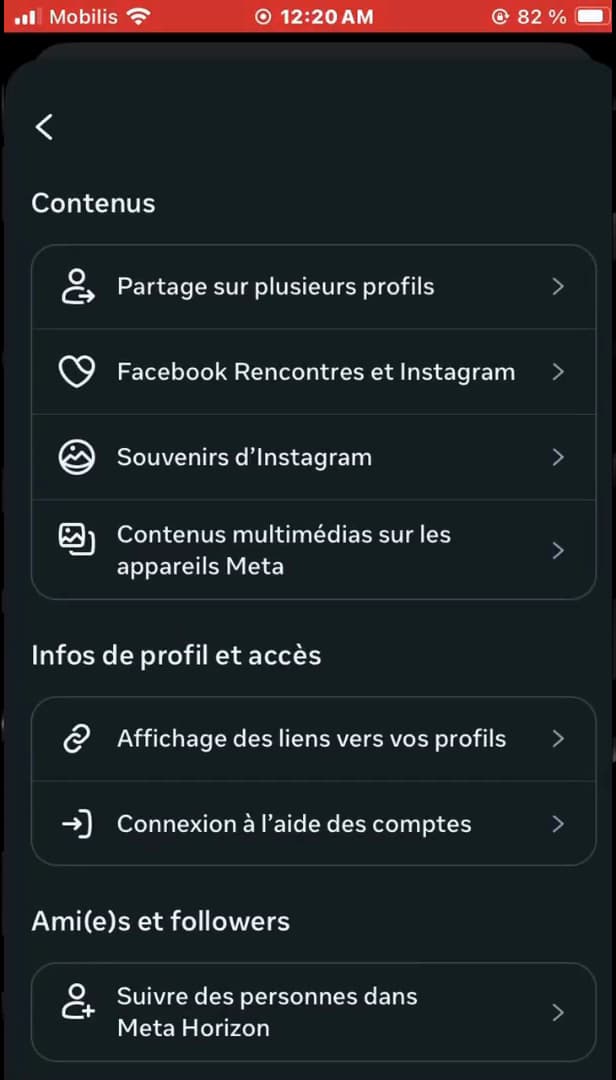
"Log out" is at the very bottom of the settings. Scroll all the way to the bottom of the settings page until you reach "Log out".
Confirm the logout

Confirm to end your Messenger session. Tap "Log out", then confirm "Log out of account?".
Good to know
You're logged out of Messenger: you'll need your login details to sign back in. On a shared device, remember to log out of Facebook too.
Good to know
- On a shared phone, also log out of the Facebook app.
- Messenger and Facebook share the same Meta account: check both.
- For a remote logout, use the login activity from another device.
Frequently asked questions
- Where is the logout button on Messenger?
- At the very bottom of Settings & privacy › Settings. Scroll down to "Log out".
- Will I also be logged out of Facebook?
- Not necessarily. Messenger and Facebook are two separate apps: log out of Facebook too if needed.
- How do I log out remotely?
- From the login activity (Meta Accounts Center) on another device, you can end the session remotely.
Related tutorials
 MessengerHow to Turn On Messenger NotificationsNot getting your Messenger notifications anymore? Here's how to turn them back on from the app, step by step.
 MessengerHow to Hide the Content of Messenger NotificationsWant to hide the message preview from Messenger on your lock screen? Here's how to do it, step by step.
 MessengerHow to Find an Old Message on MessengerLooking for an old message in a Messenger chat? Here's how to find it, step by step.
 MessengerHow to send a file on MessengerWant to send a PDF or a document on Messenger? Here's how to attach a file, step by step.