
How to log Messenger out of other devices
Forgot to log out on another phone or computer, or suspect a suspicious login? You can log Messenger out of other devices remotely, right from your phone. Here's how to do it, step by step.
Prefer a video? Watch the full tutorial below.
Logging Messenger out of other devices, step by step
Open the menu and Settings
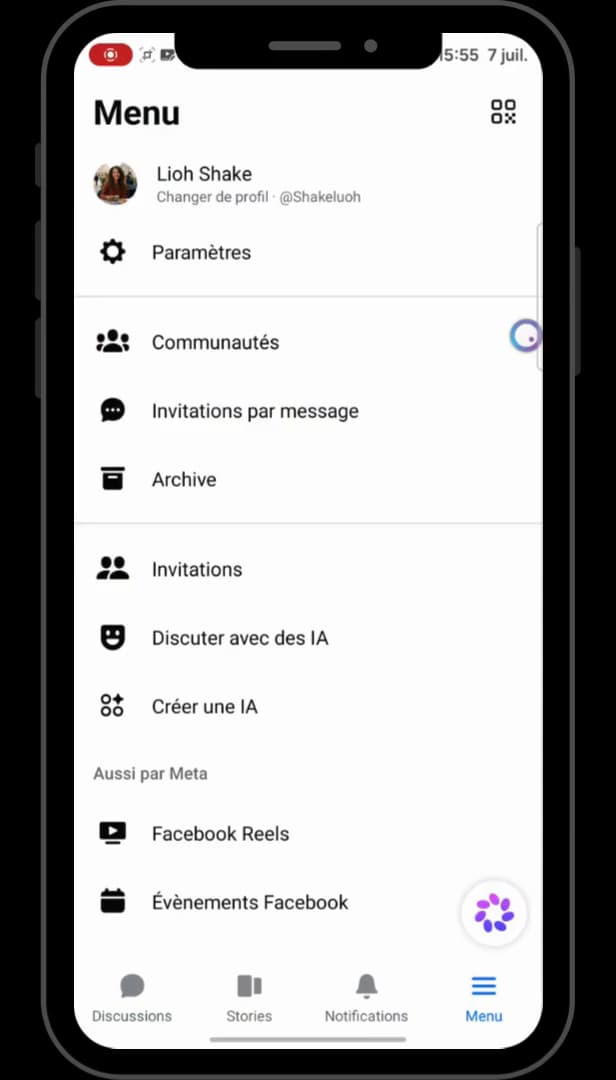
Open the Messenger menu, then "Settings". Open "Messenger", tap "Menu" in the bottom right, then open "Settings".
Open "Privacy and safety"
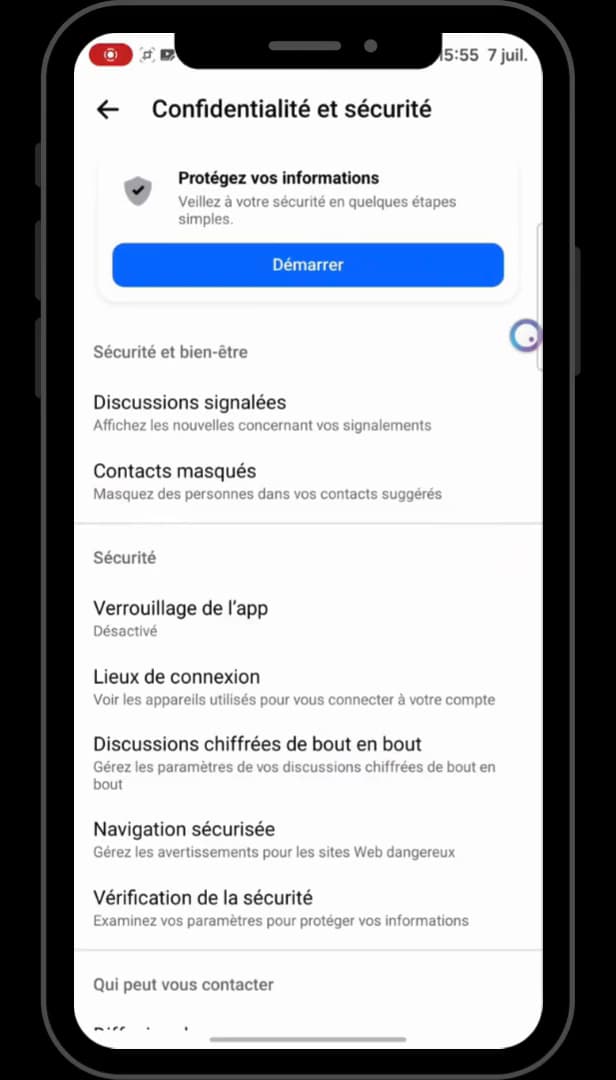
"Privacy and safety" contains the login activity. In settings, open "Privacy and safety". This is where you'll find "Login activity".
Open "Login activity"
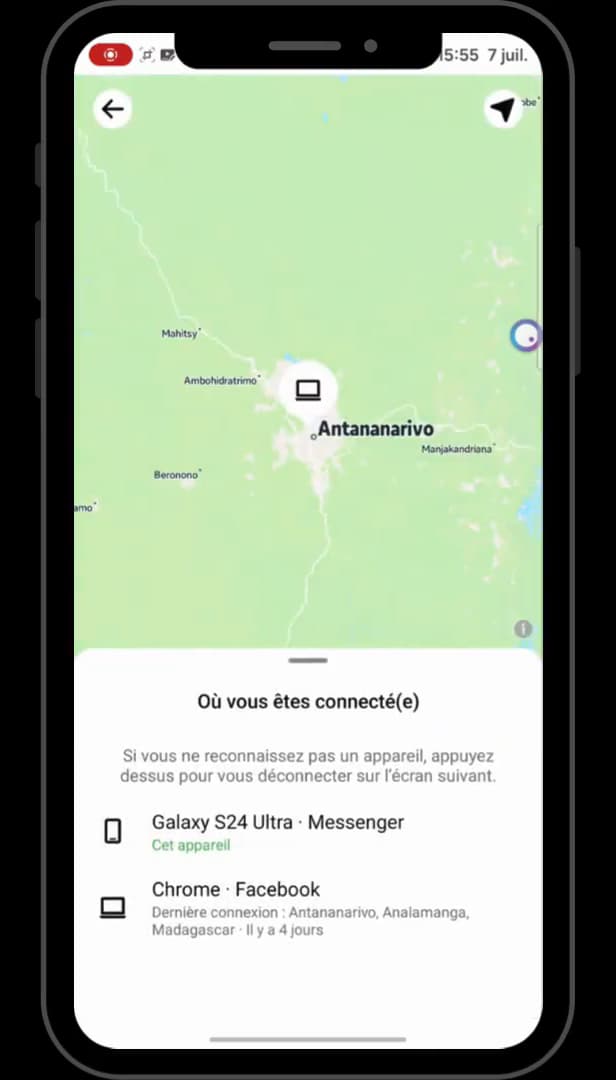
"Login activity" lists every connected device. Tap "Login activity". The "Where you're logged in" card shows every device connected to your account (phones, computers, browsers).
Log out the device
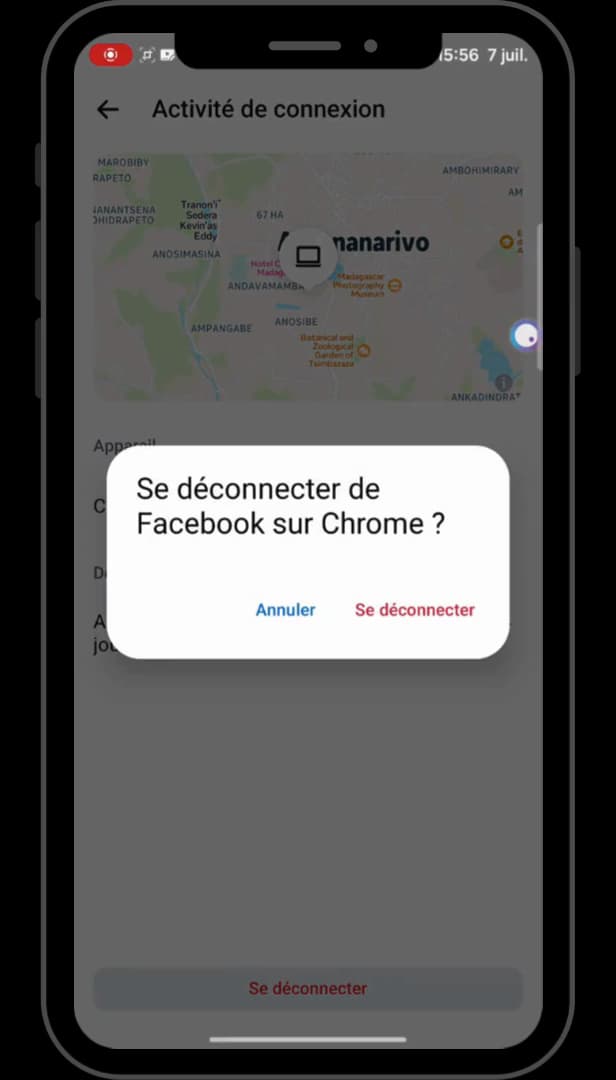
"Log out" ends the session remotely on the chosen device. Select the device to log out, then tap "Log out". Confirm: the session is closed remotely on that device.
Good to know
The logout is "immediate": the affected device will have to log back in with your credentials. If you suspect a break-in, remember to "change your password" too.
Good to know
- Messenger login activity is "shared with Facebook" (Meta Accounts Center).
- If in doubt, log out "all devices" except your own, then change your password.
- Turn on "two-factor authentication" to block unauthorized logins.
Frequently asked questions
- Is remote logout immediate?
- Yes. As soon as you confirm, the session is closed on that device: it will need your credentials to log back in.
- How do I know if someone is logged into my account?
- Open "Login activity": every device and login location is listed there. Any device or location you don't recognize should be logged out.
- What should I do after logging out a suspicious device?
- Change your password immediately and turn on two-factor authentication. This prevents any reconnection with the old credentials.
Related tutorials
 MessengerHow to Turn On Messenger NotificationsNot getting your Messenger notifications anymore? Here's how to turn them back on from the app, step by step.
 MessengerHow to Hide the Content of Messenger NotificationsWant to hide the message preview from Messenger on your lock screen? Here's how to do it, step by step.
 MessengerHow to Find an Old Message on MessengerLooking for an old message in a Messenger chat? Here's how to find it, step by step.
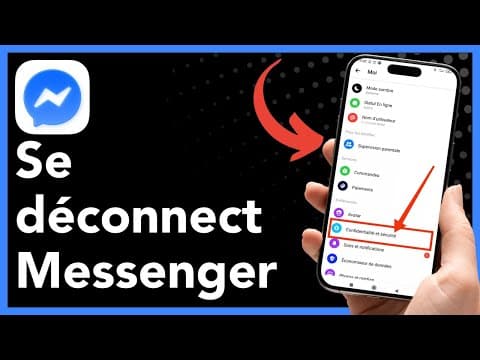 MessengerHow to log out of MessengerWant to log out of Messenger on your phone? Here's how to do it, step by step.