
How to Share a Folder on Google Drive
Want to give a colleague or friend access to some files? You can share a folder on Google Drive by email or via a link, with the permissions you choose. Here's how to do it, step by step.
Prefer a video? Watch the full tutorial below.
Sharing a Google Drive folder, step by step
Open the share window
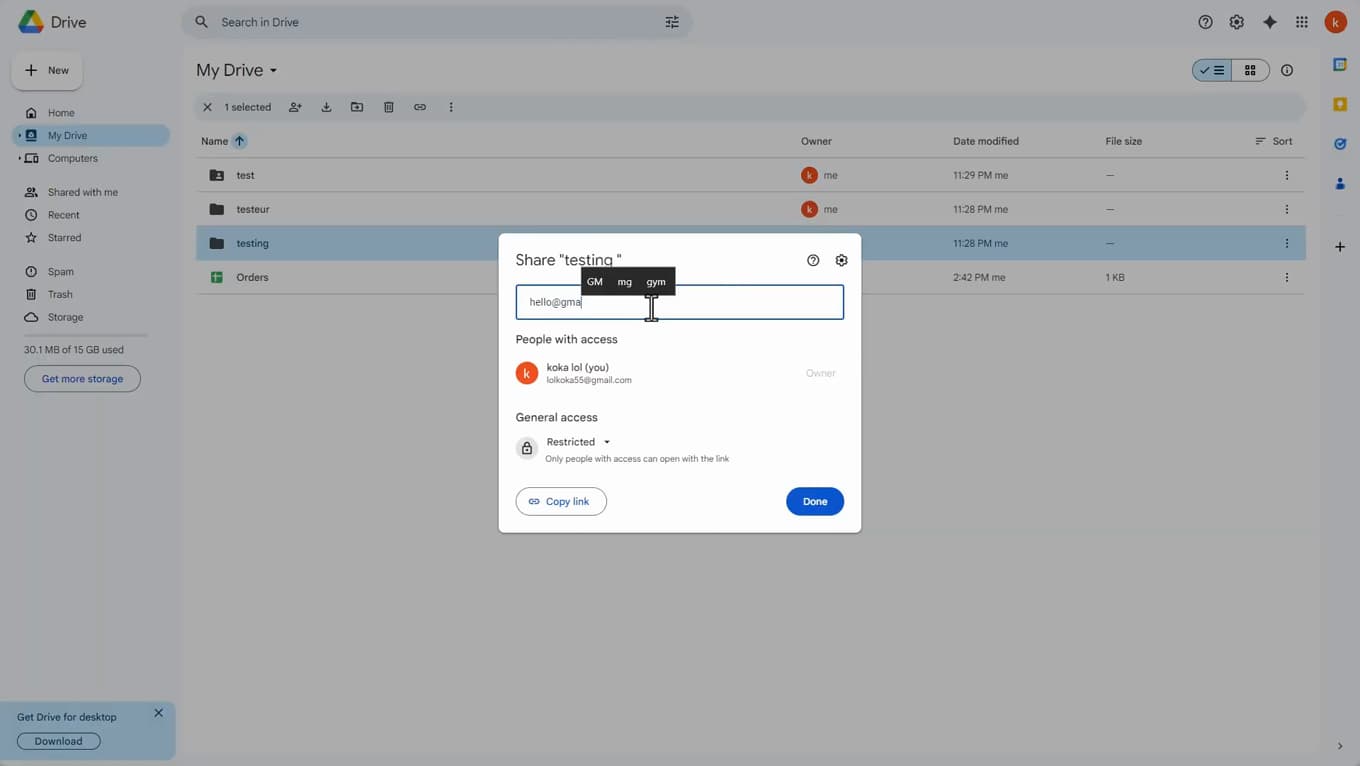
"Share" opens the folder's access options. In Google Drive, "right-click" the folder (or tap "⋮") and choose "Share".
Set the general access
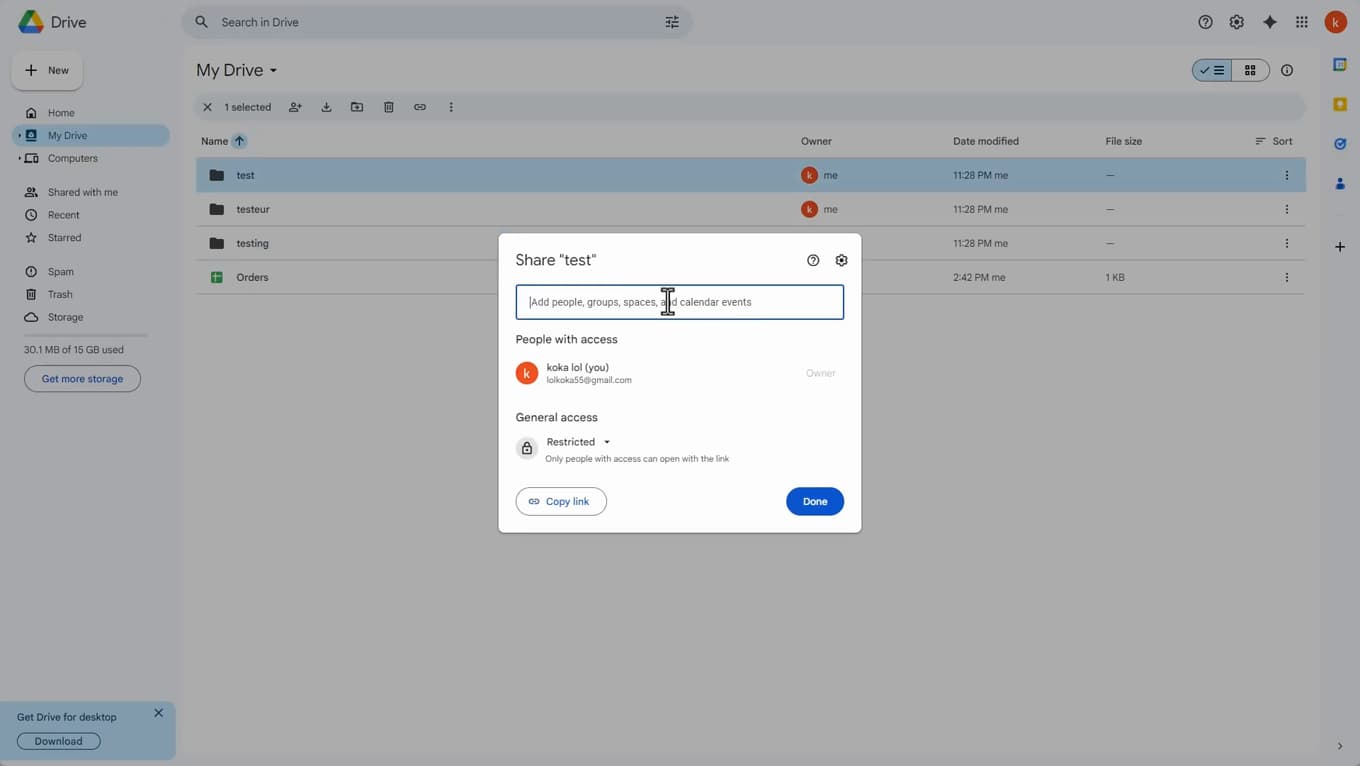
"Anyone with the link" makes the folder shareable by URL. Add people by "email", or under "General access" choose "Anyone with the link" and set the role ("Viewer", "Commenter" or "Editor").
Copy the link or send
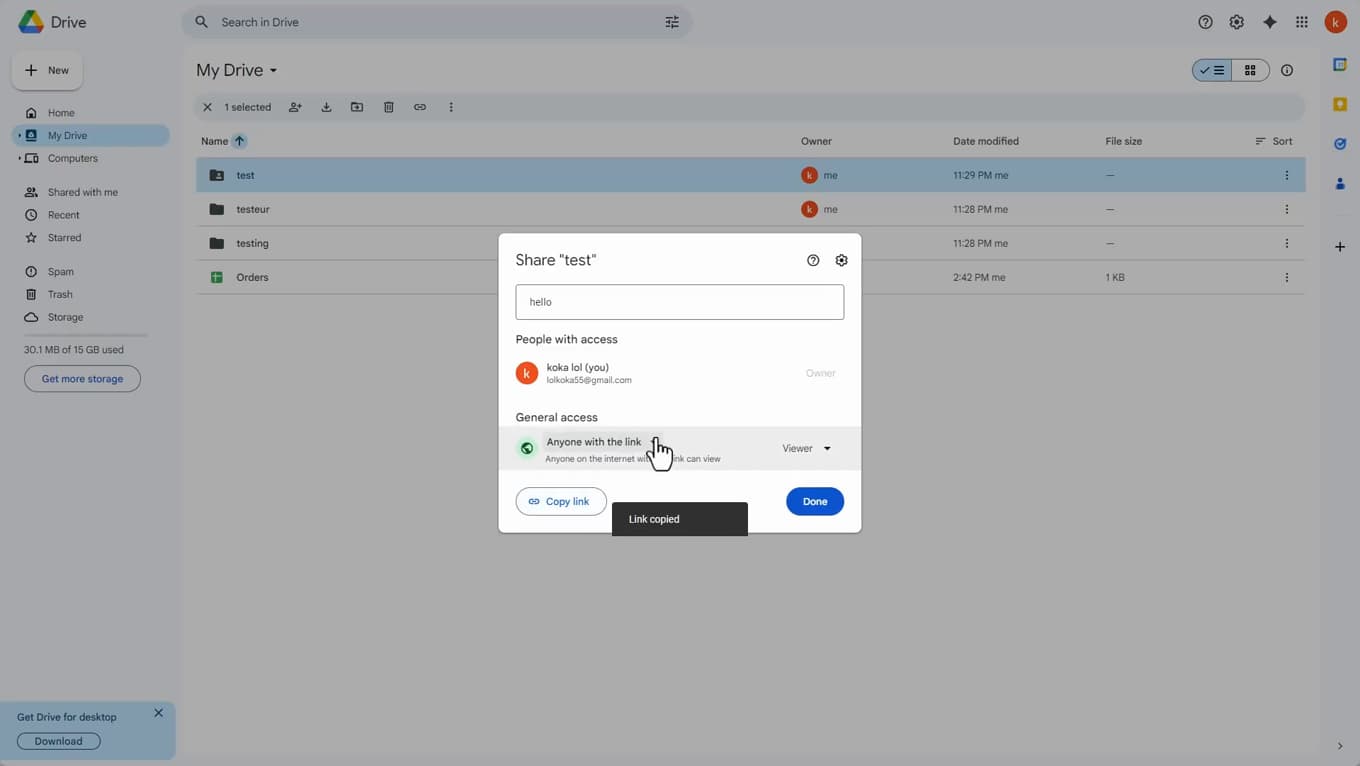
"Copy link" gives you the URL to share. Tap "Copy link" to share it, or "Send" to email it directly.
Good to know
The folder is shared: the people you authorized see "all of its contents" with the permissions you set. You can "change or remove" access at any time.
Good to know
- "Editor" lets people add/remove files; "Viewer" can only look.
- A shared folder gives access to "all the files" it contains, including future ones.
- To stop sharing, set general access back to "Restricted".
Frequently asked questions
- What's the difference between Viewer, Commenter and Editor?
- A Viewer can only look, a Commenter can add comments, and an Editor can add, edit and delete files in the folder.
- Does sharing a folder share all its contents?
- Yes. People with access see every file in the folder, including files added later.
- How do I stop sharing a folder?
- Reopen "Share", remove the people you added, and set "General access" back to "Restricted".
Related tutorials
 GoogleHow to add a profile on Google ChromeWant to keep your Chrome uses separate? Here's how to add a profile, step by step.
 GoogleHow to Delete a Calendar in Google CalendarWant to remove a calendar from Google Calendar? Here's how to delete it or unsubscribe from it, step by step.
 GoogleHow to Delete Your Entire Google HistoryWant to clear your Google activity (searches, YouTube, trips)? Here's how to delete your entire history, step by step.