
How to Delete a Calendar in Google Calendar
Is your calendar list cluttered? You can delete a calendar in Google Calendar (or unsubscribe from it) in a few clicks. Here's how to do it, step by step.
Prefer a video? Watch the full tutorial below.
Deleting a calendar in Google Calendar, step by step
Find the calendar
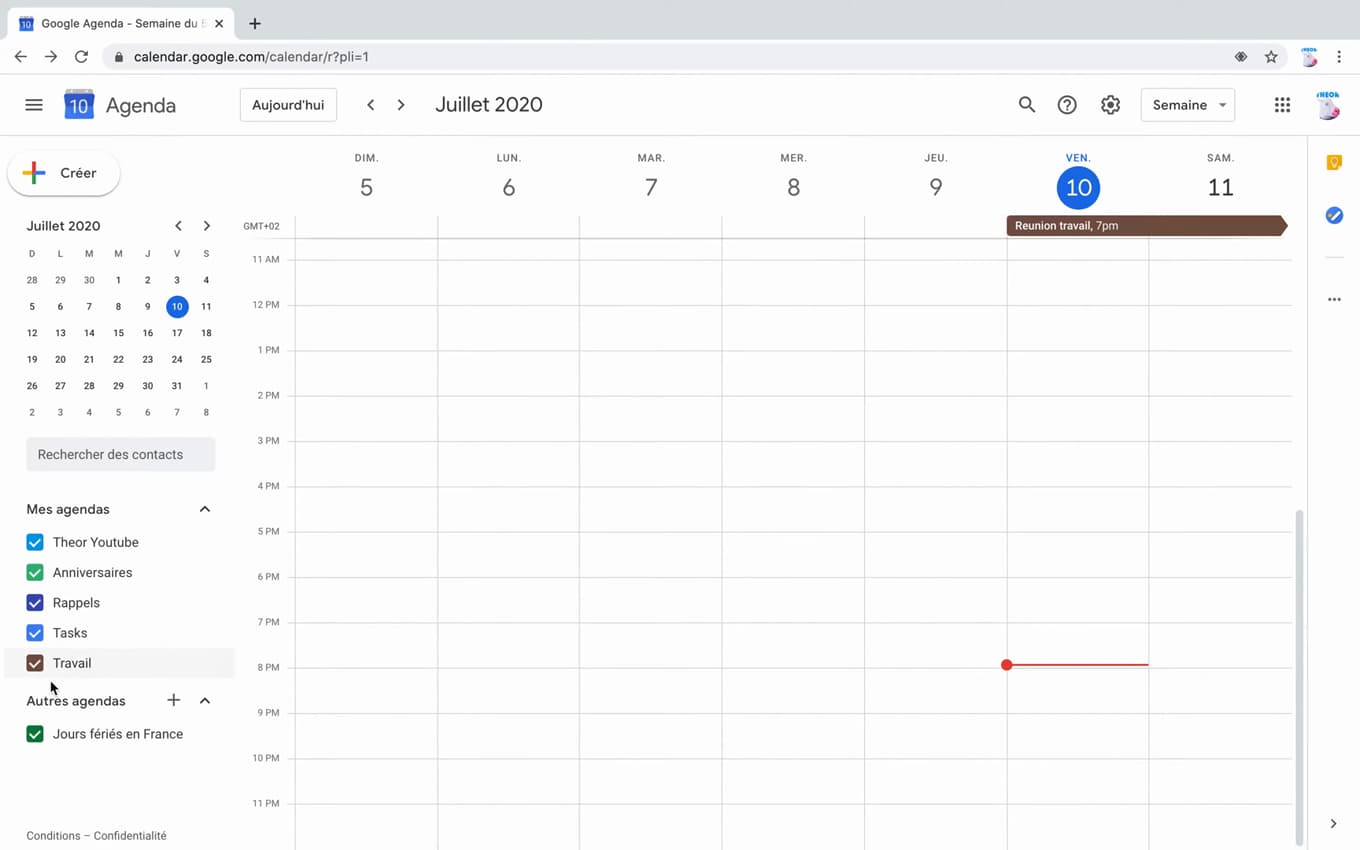
"My calendars" lists all your active calendars. On "calendar.google.com", under "My calendars" on the left, hover over the calendar you want to remove.
Open the calendar's menu
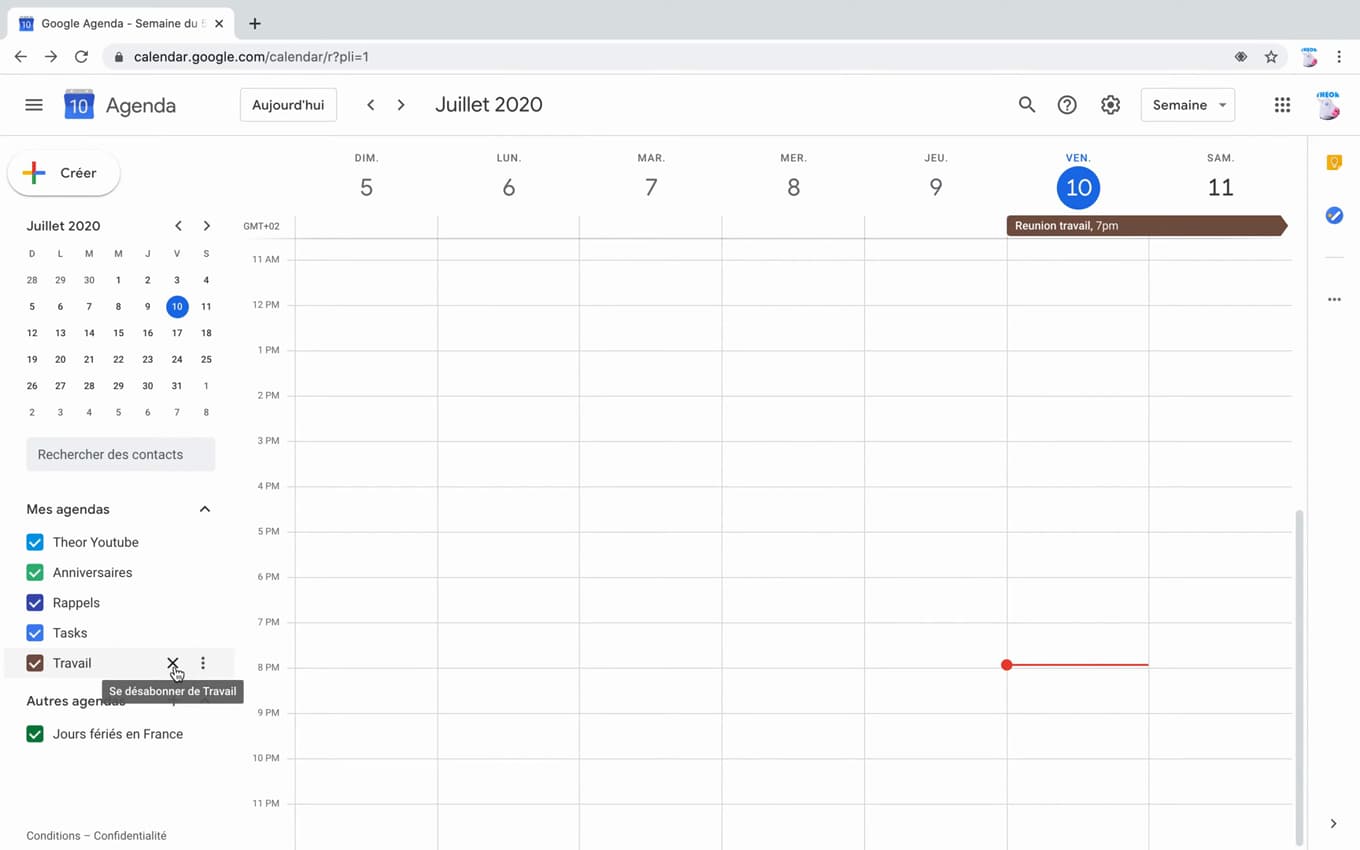
The "⋮" menu lets you remove or configure the calendar. Click the "⋮" next to its name, then choose "Unsubscribe" or "Settings".
Confirm the removal
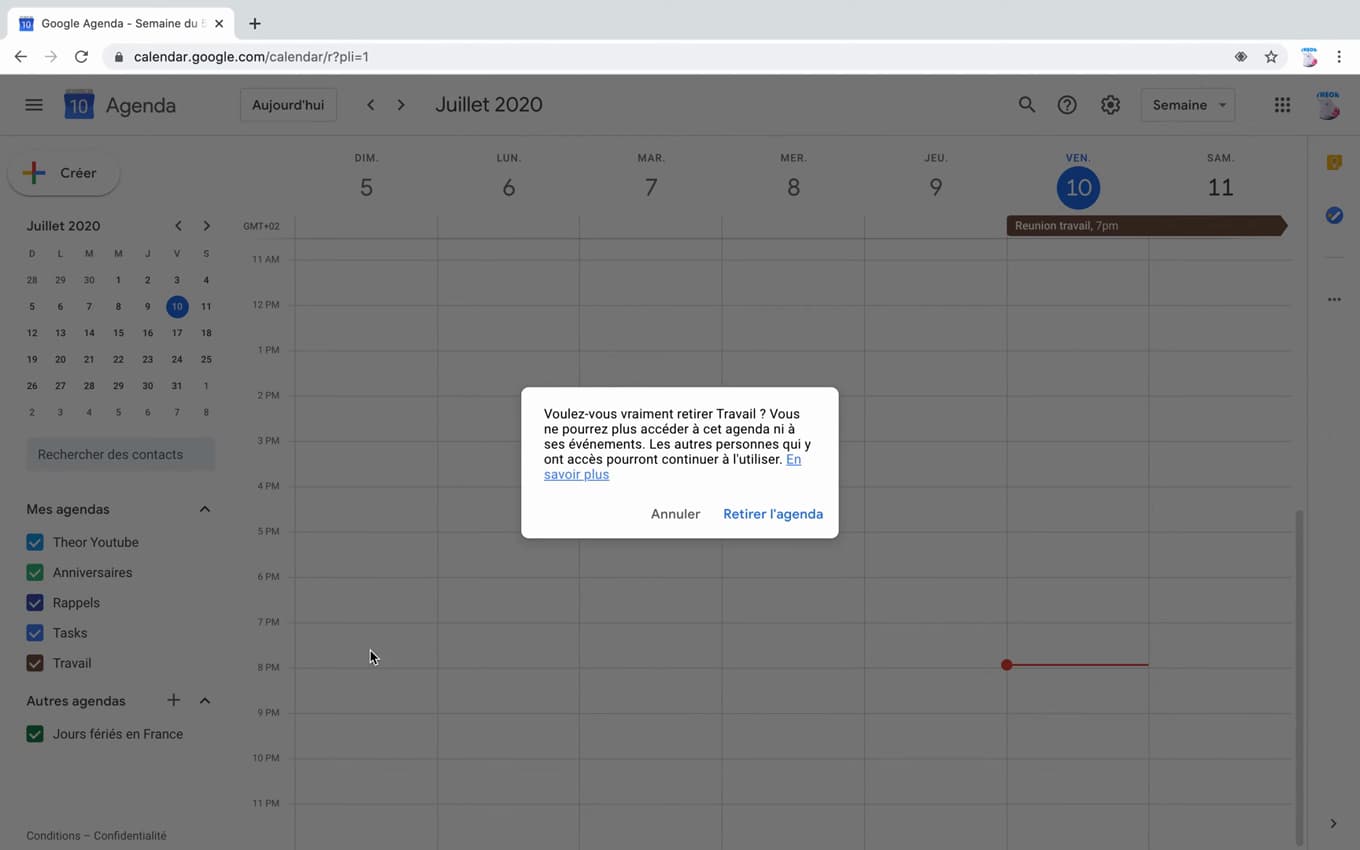
The confirmation permanently removes the calendar from your list. Confirm "Remove calendar" in the confirmation window.
Good to know
The calendar "disappears" from your list. For a "shared" calendar (one you don't own), you "unsubscribe"; for a calendar you "created", you delete it permanently through its "Settings".
Good to know
- "Unsubscribing" from a shared calendar only removes it "for you".
- Deleting a calendar "you created" removes it for "everyone".
- A deleted calendar "can't be recovered": do it knowingly.
Frequently asked questions
- What's the difference between "unsubscribe" and "delete"?
- Unsubscribing removes a shared calendar from your view only. Deleting erases a calendar you created, for all of its subscribers.
- Can I recover a deleted calendar?
- No. Deleting a calendar you own is permanent. Unsubscribing, on the other hand, can be undone by subscribing again.
- Where do I delete a calendar I created?
- Via "⋮" › "Settings and sharing" for the calendar, then, at the very bottom, the "Delete" button.
Related tutorials
 GoogleHow to Delete Your Entire Google HistoryWant to clear your Google activity (searches, YouTube, trips)? Here's how to delete your entire history, step by step.
 GoogleHow to add a profile on Google ChromeWant to keep your Chrome uses separate? Here's how to add a profile, step by step.
 GoogleHow to Share a Folder on Google DriveWant to share a Google Drive folder with someone or via a link? Here's how to do it, step by step.