
How to Delete Your Entire Google History
Want to clean up your data? You can delete your entire Google history (searches, YouTube, web activity) from "My Google Activity". Here's how to do it, step by step.
Prefer a video? Watch the full tutorial below.
Delete your entire Google history, step by step
Open "My Google Activity"
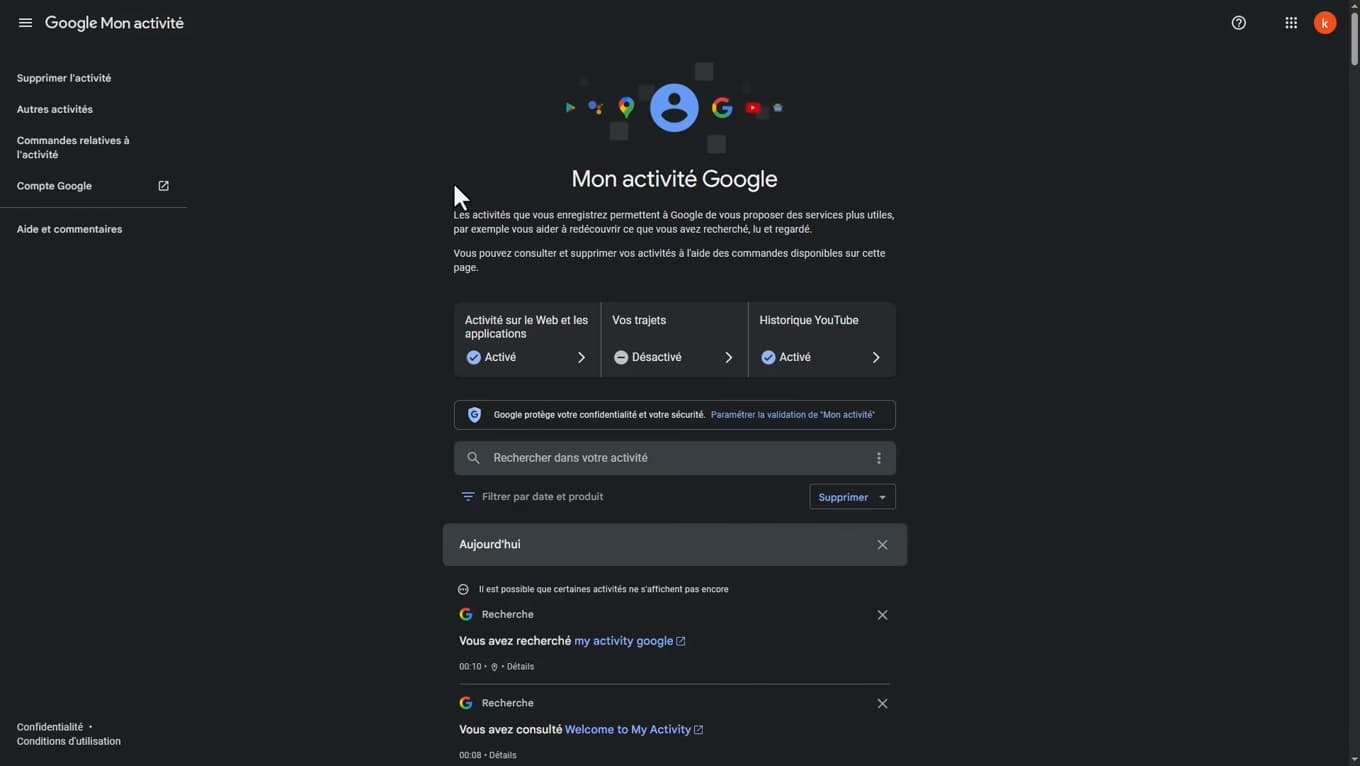
"My Google Activity" gathers all of your history. Go to "myactivity.google.com" (or Google Account › Data & privacy › My Activity) and sign in.
Choose "All time"
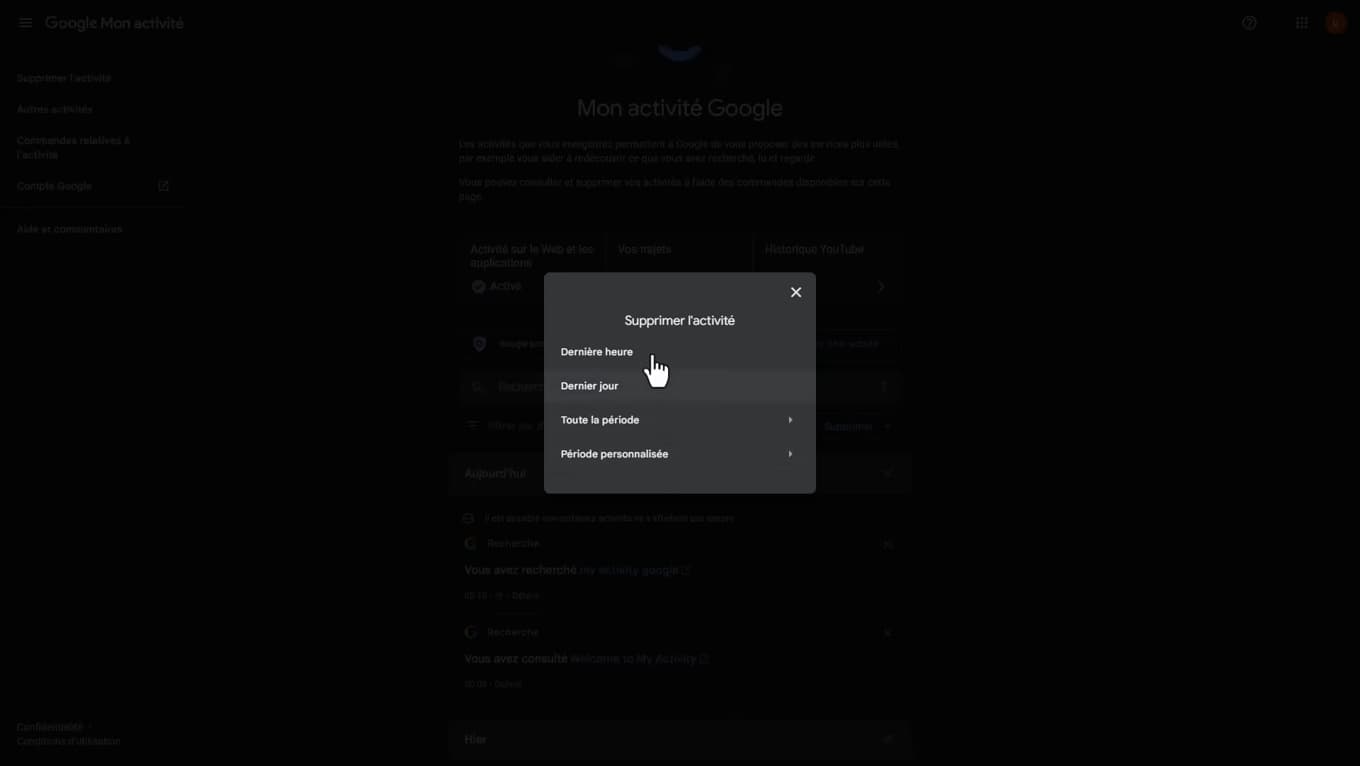
"All time" clears your entire history. Tap "Delete", then choose "All time" (or a specific date range).
Confirm the deletion
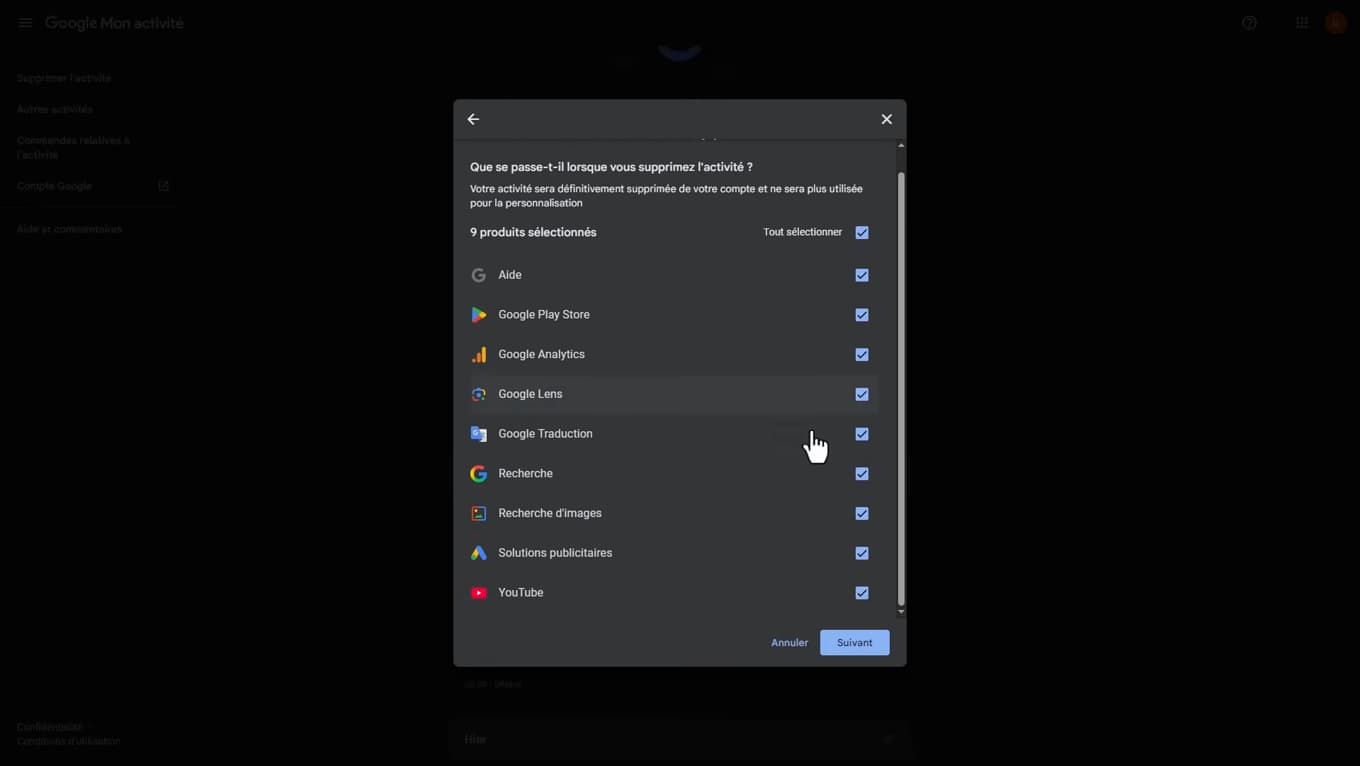
Confirm: the history is deleted from your Google account. Google shows the services affected (Search, YouTube, Maps, etc.). Tap "Next" then "Delete" to confirm.
Good to know
Your Google activity is now "cleared". Your recommendations and personalized results will be "reset" for a while. You can also turn on "auto-delete".
Good to know
- "Auto-delete" clears your activity every 3, 18 or 36 months.
- You can "pause" Web & App Activity so nothing is recorded anymore.
- "YouTube" and "Maps" history is deleted in the same place, by service.
Frequently asked questions
- Where is all my Google history?
- On "myactivity.google.com", or via Google Account › Data & privacy. Everything is gathered there by service.
- Can I delete just my searches?
- Yes. Use the filter by service ("Search") before deleting, or choose "All time" to clear everything.
- Is the deletion permanent?
- Yes. Once deleted, the activity can't be recovered and no longer feeds your recommendations.
Related tutorials
 GoogleHow to Delete a Calendar in Google CalendarWant to remove a calendar from Google Calendar? Here's how to delete it or unsubscribe from it, step by step.
 GoogleHow to add a profile on Google ChromeWant to keep your Chrome uses separate? Here's how to add a profile, step by step.
 GoogleHow to Share a Folder on Google DriveWant to share a Google Drive folder with someone or via a link? Here's how to do it, step by step.