
How to add a profile on Google Chrome
Want to keep your work and personal browsing separate? You can add a profile on Google Chrome to get separate bookmarks, passwords and browsing history. Here's how to do it, step by step.
Prefer a video? Watch the full tutorial below.
Adding a profile on Google Chrome, step by step
Open the profiles menu
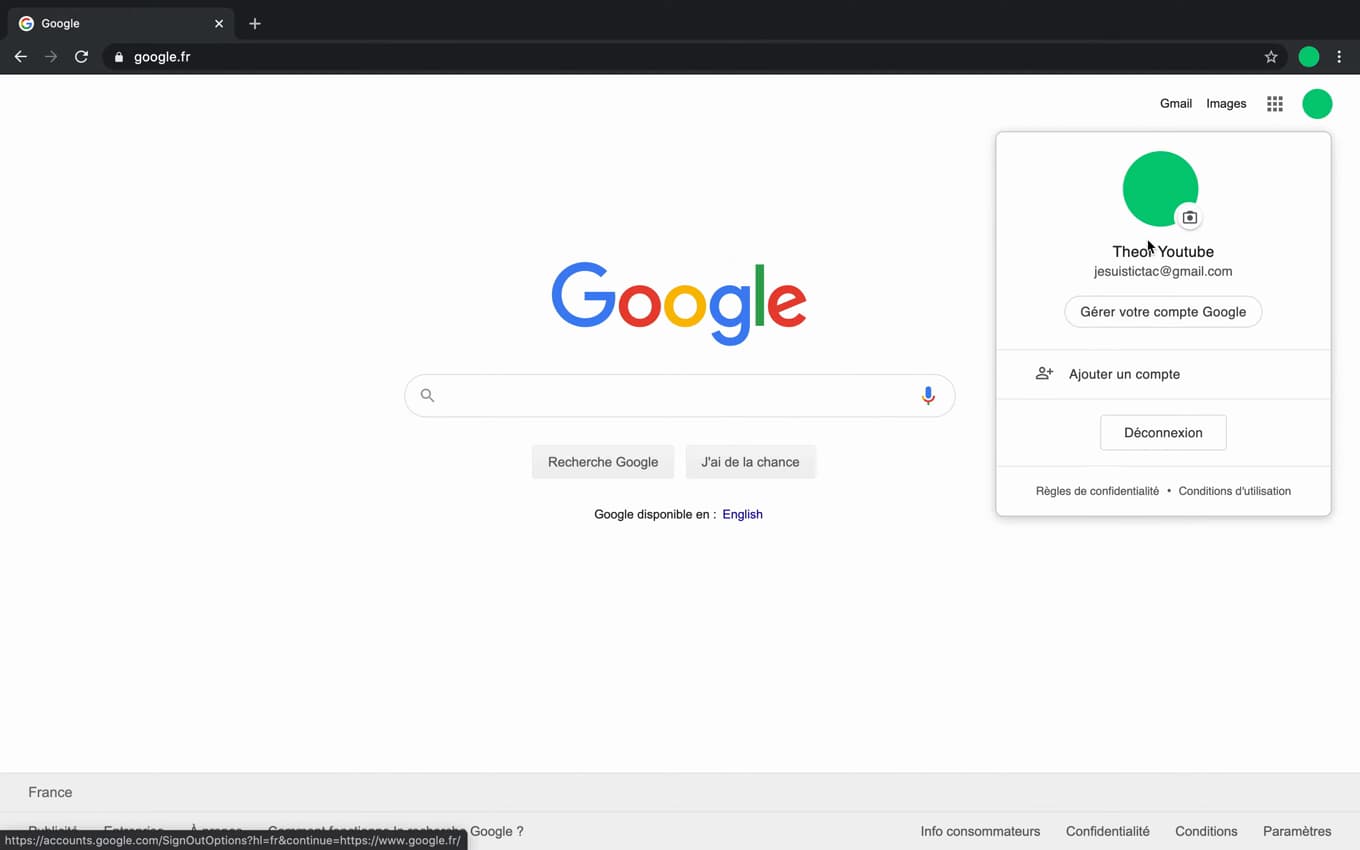
The profile icon lists and adds your Chrome accounts. In the top right of Chrome, click your "profile picture" then "Add".
Sign in or continue without an account
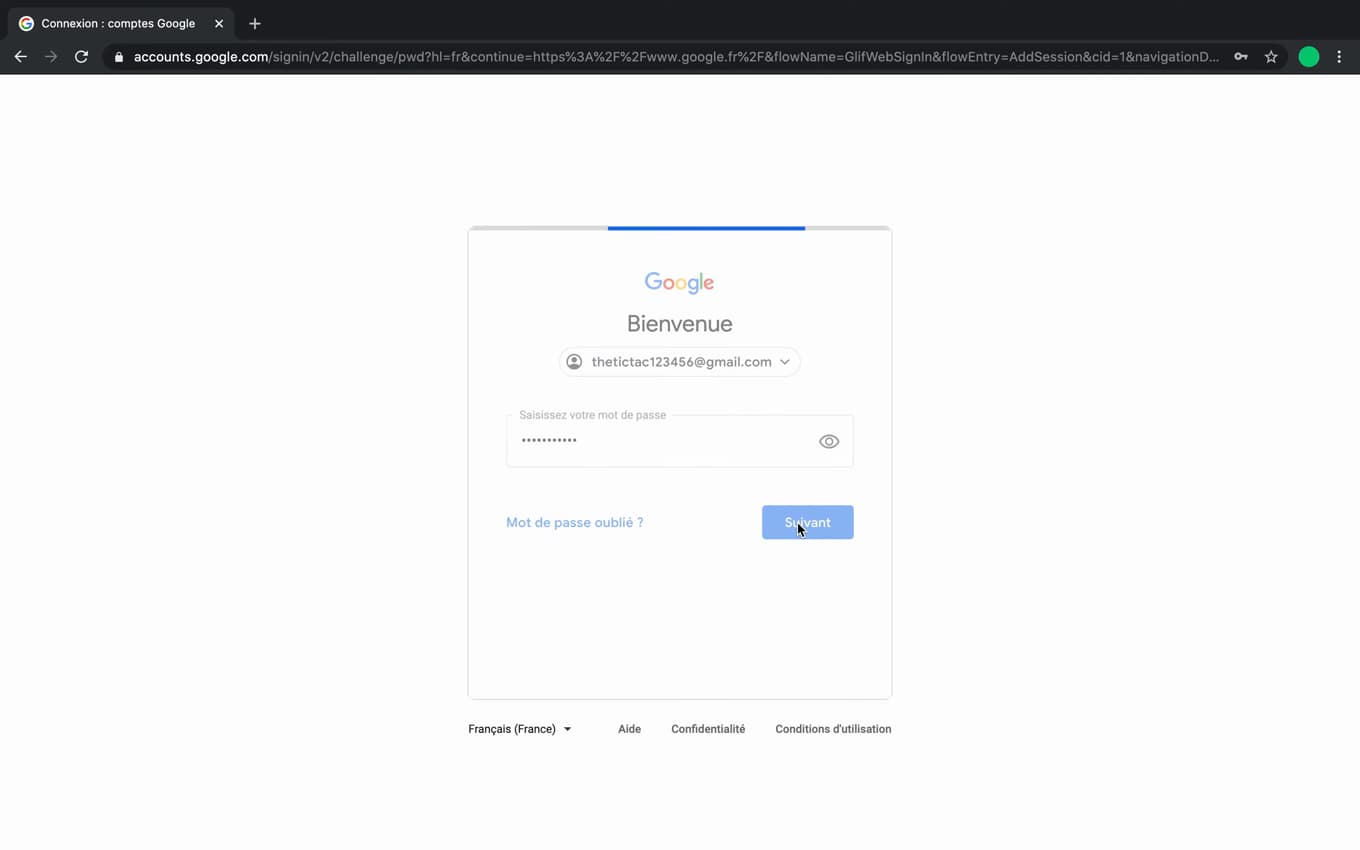
A Google account syncs your bookmarks, passwords and tabs. Choose "Sign in" with a Google account, or "Continue without an account".
Your new profile is ready
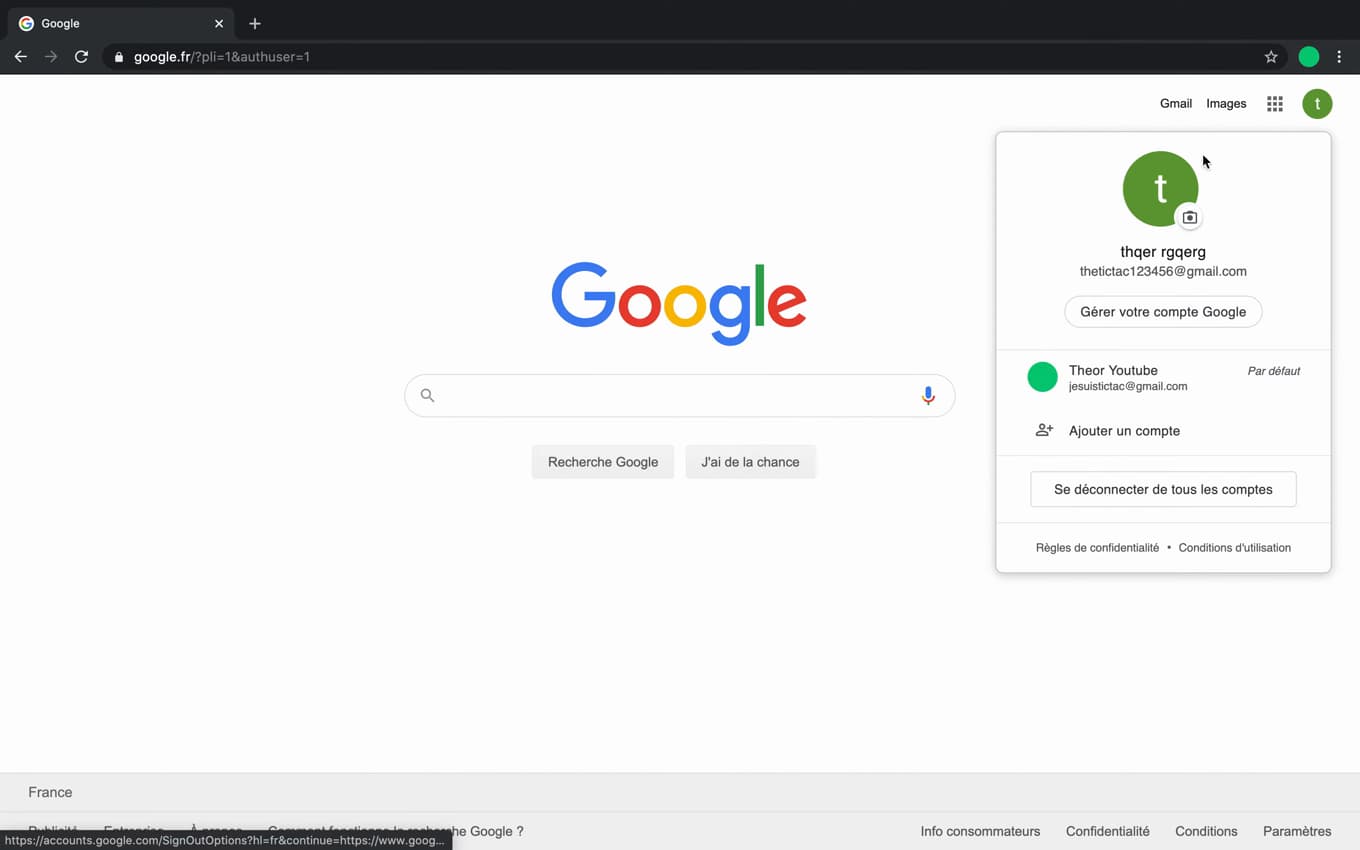
Each profile has its own bookmarks, passwords and history. Chrome opens a new window dedicated to this profile, with its own data.
Good to know
You switch between profiles using the icon in the top right. Each profile keeps its own "bookmarks", "passwords", "extensions" and "history" separate.
Good to know
- A profile "signed in" to a Google account syncs its data across your devices.
- A profile "without an account" stays "local" to this computer.
- Perfect for separating "work / personal" or several users of the same PC.
Frequently asked questions
- Do I need a Google account to create a profile?
- No. You can create a profile "without an account", purely local. A Google account just adds syncing.
- Do profiles share their passwords?
- No. Each profile has its own bookmarks, passwords, extensions and history, all completely separate.
- How do I switch from one profile to another?
- Click the profile icon in the top right of Chrome and select the profile you want: it opens in its own window.
Related tutorials
 GoogleHow to Delete a Calendar in Google CalendarWant to remove a calendar from Google Calendar? Here's how to delete it or unsubscribe from it, step by step.
 GoogleHow to Delete Your Entire Google HistoryWant to clear your Google activity (searches, YouTube, trips)? Here's how to delete your entire history, step by step.
 GoogleHow to Share a Folder on Google DriveWant to share a Google Drive folder with someone or via a link? Here's how to do it, step by step.