
How to Recover a Gmail Account Without a Password
You no longer have the password or the phone number for your Gmail account? All is not lost: Google offers an account recovery form designed for exactly these situations. By answering a few security questions as best you can, you can prove the account is really yours and set a new password. Follow this guide all the way through: even without a phone number, you have a real chance of recovering your Gmail account.
Prefer a video? Watch the full tutorial below.
Recover your Gmail account without a password, step by step
Go to account.google.com and click "Forgot password"
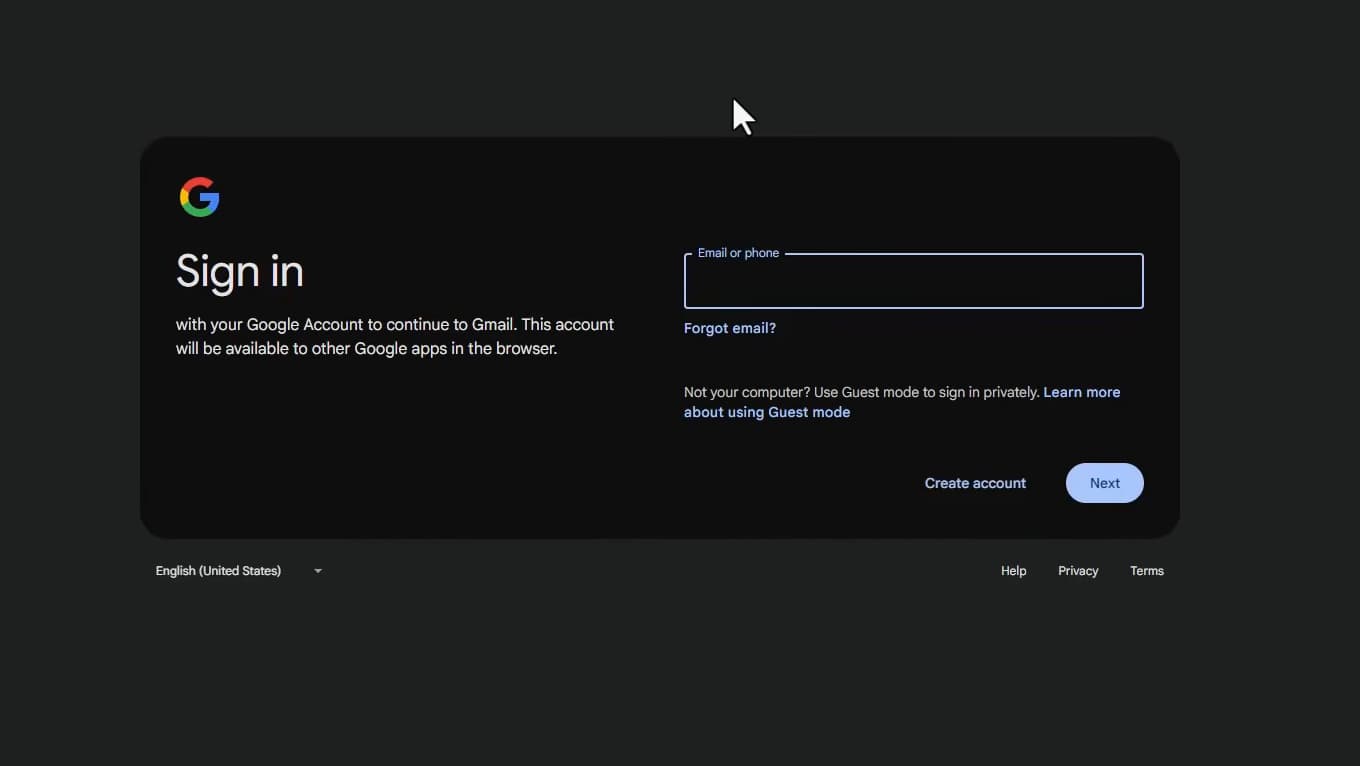
Recovery starts from your Google account sign-in page. Go to "account.google.com", enter the Gmail address you want to recover, then click "Forgot password".
Click "Try another way"
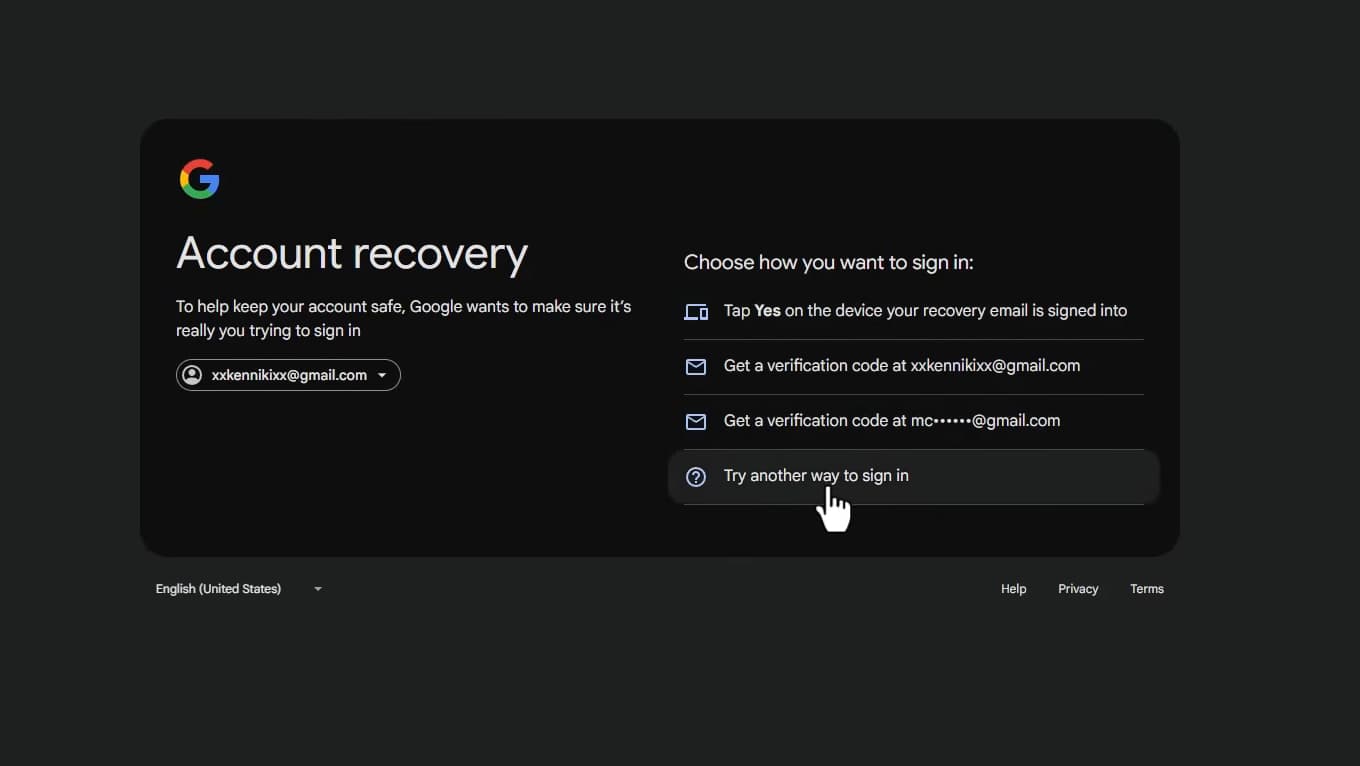
"Try another way" lets you bypass phone verification. Google will offer several verification methods (SMS, connected device, etc.). Since you don't have your phone number, click "Try another way" each time.
Keep going until you reach the recovery form
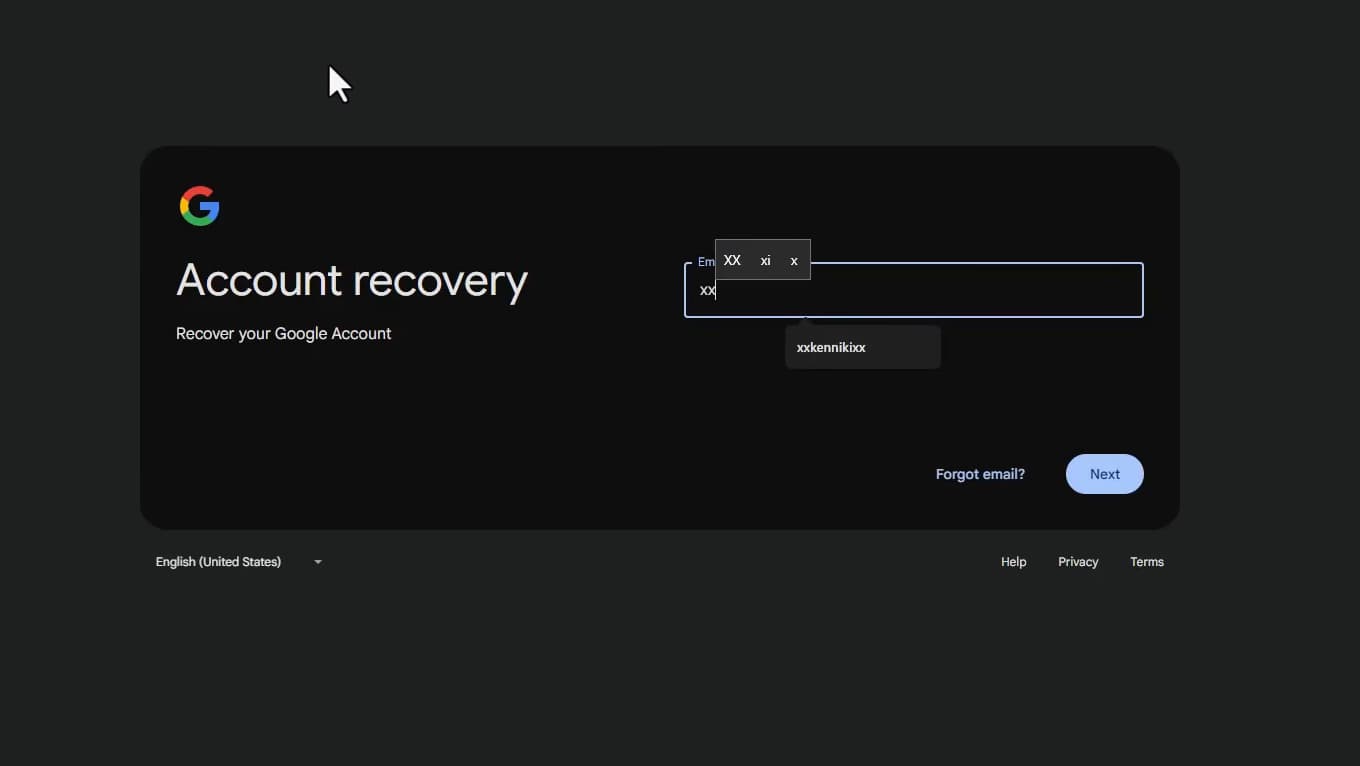
The recovery form is the key when no automatic method works. Repeat until you reach the account "recovery form". If Google shows "Couldn't sign you in", click "Try again" and continue.
Confirm your identity
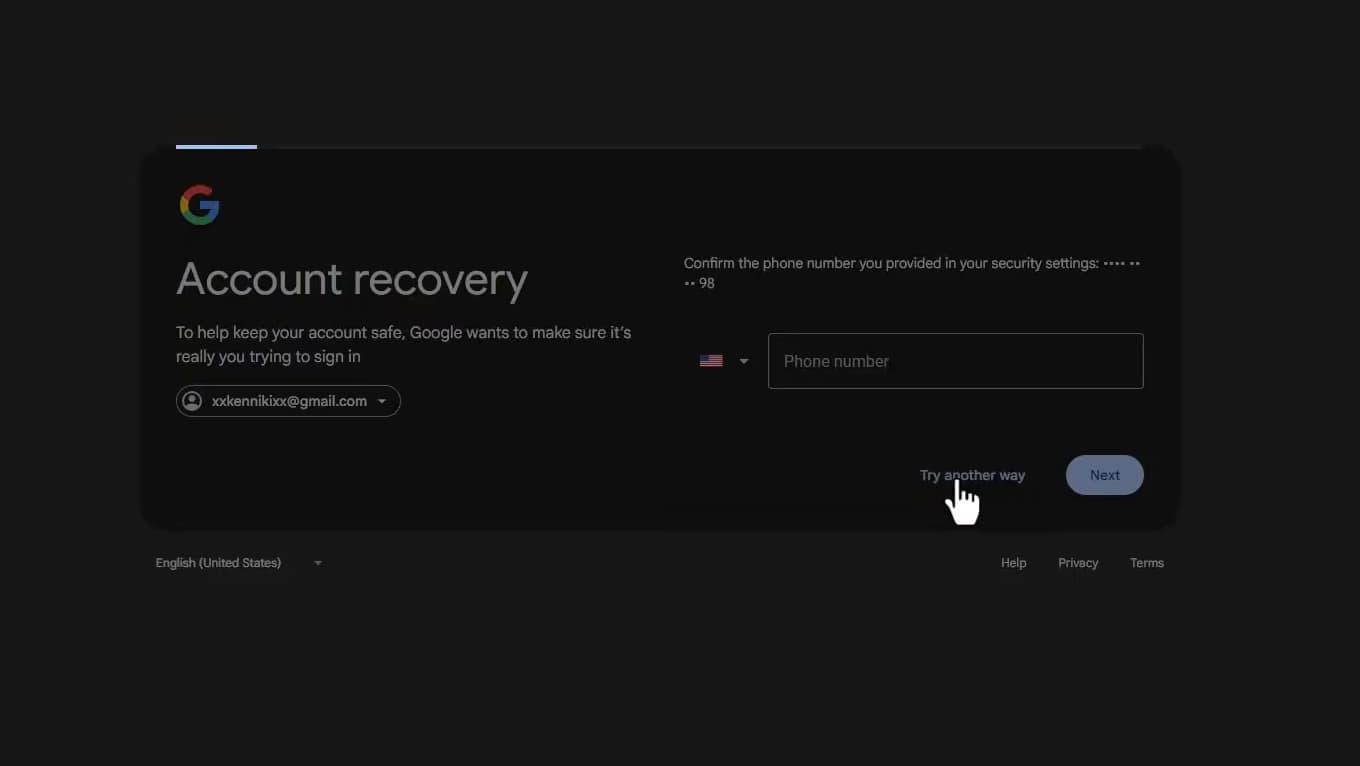
The more accurate information you give, the more Google can confirm the account is yours. Fill in the details you know: "recovery email address", "approximate account creation date", or any other detail. You don't have to be perfect — just give the "best answers you can".
Reset your password
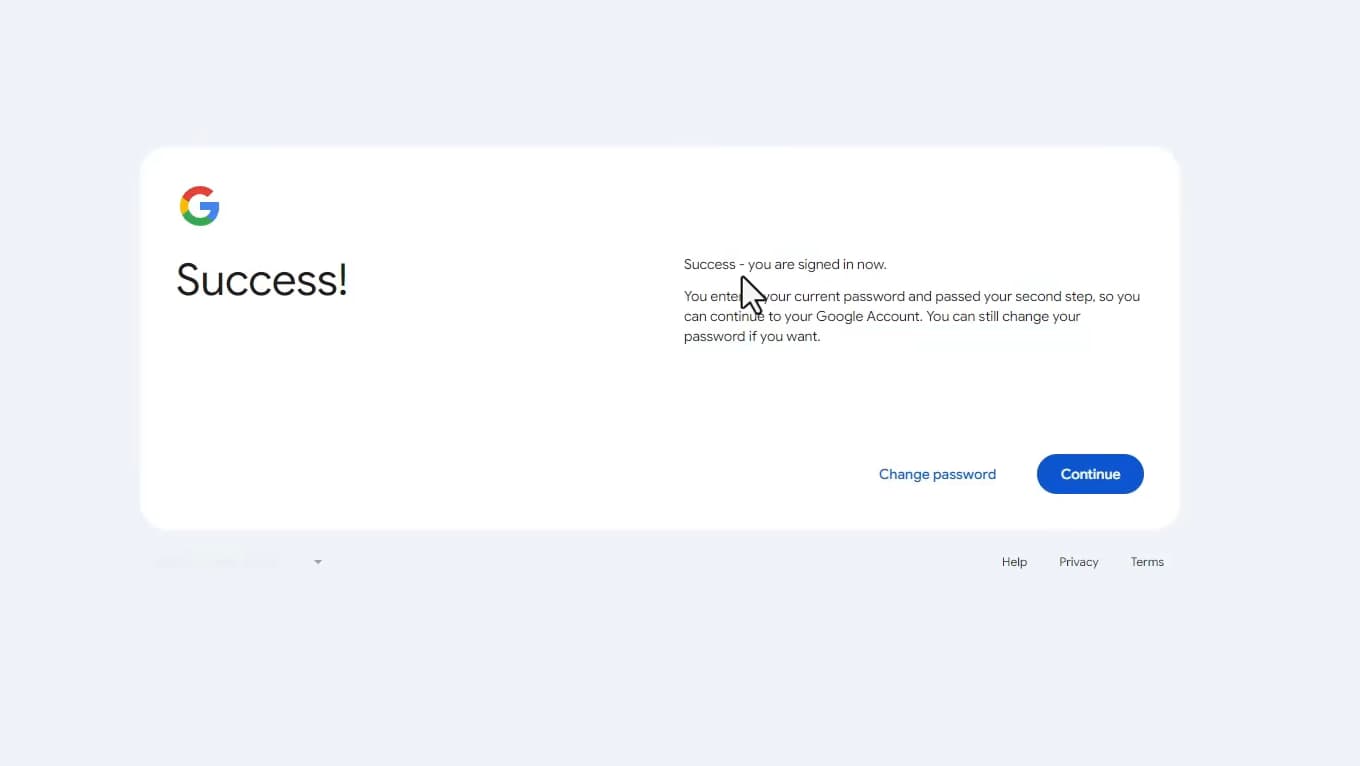
Account recovered: set a new password to secure it. Once your identity is verified, Google lets you "create a new password". The message "You're signed in" confirms recovery: click "Change password" to finish.
Good to know
Success depends on how good your answers are: take your time, and if you fail, "try again" from a device and location you normally use (Google factors that in).
To never lose access again
- Add an up-to-date "recovery email address" to your Google account.
- Add a backup "phone number".
- Turn on "2-Step Verification" and note down your backup codes.
Frequently asked questions
- Can you really recover a Gmail account without a phone number or password?
- Yes, through Google's account recovery form. You have to prove your identity by answering questions (recovery email, creation date, old passwords, etc.). Success isn't guaranteed but it is possible.
- How many times can I try again?
- You can restart the process several times. Try again from a device and network you usually use: Google relies on that to recognize you.
- What if recovery fails every time?
- Wait a few hours, then start over, giving as much accurate information as possible. Without any verifiable information, Google unfortunately can't restore access, for your security.
Related tutorials
 GmailHow to Create a Gmail Account Without a Phone NumberWant a new Gmail address without giving out your number? Here's how to create a Google account and skip the phone step, when it's possible.
 GmailHow to recover deleted emails on GmailDeleted an important email on Gmail? Here's how to recover it from the trash or the recovery tool, step by step.