How to Enable Parental Controls on Amazon Prime Video
Want to keep your kids from stumbling onto content that isn't right for them? You can enable parental controls on Amazon Prime Video with a PIN. Here's how to do it, step by step.
Prefer a video? Watch the full tutorial below.
Enabling parental controls on Amazon Prime Video, step by step
Open "Parental controls"
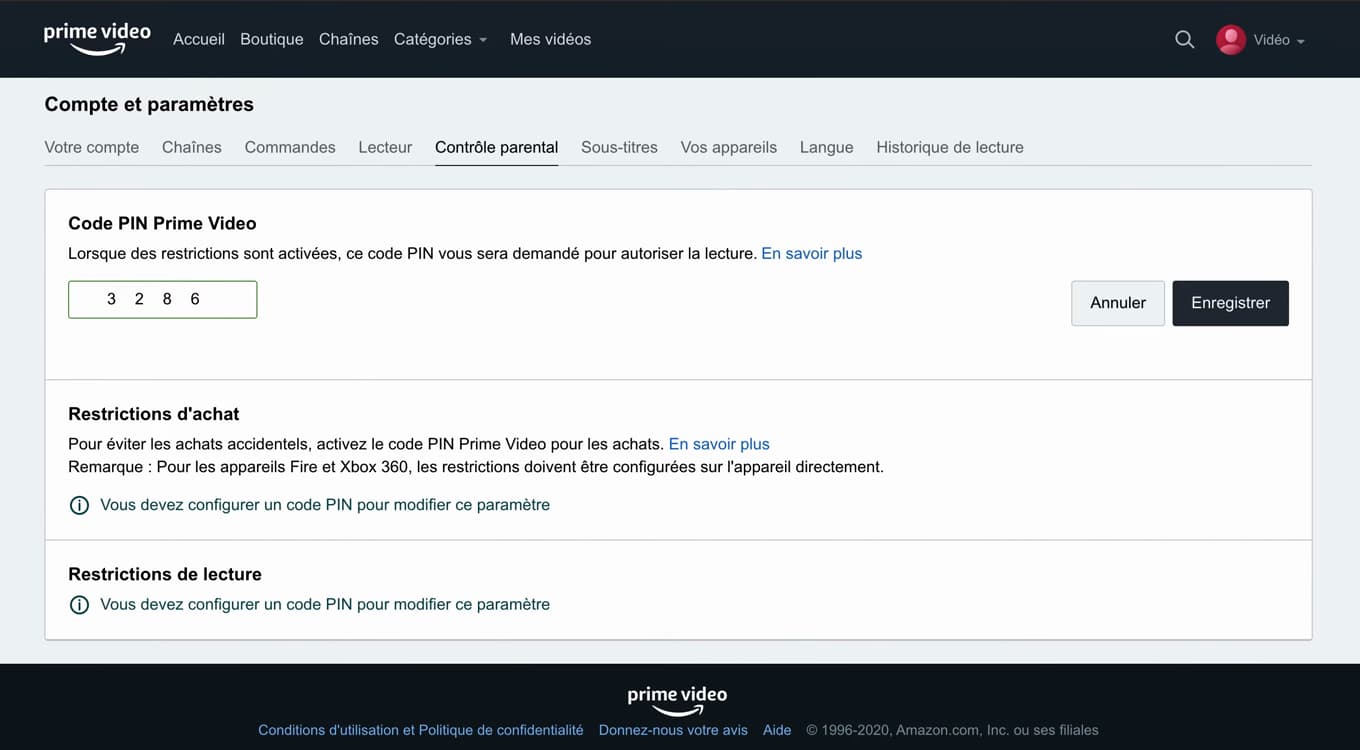
"Parental controls" groups the PIN and the restrictions together. On "primevideo.com", open "Account & Settings", then the "Parental controls" tab.
Set a PIN
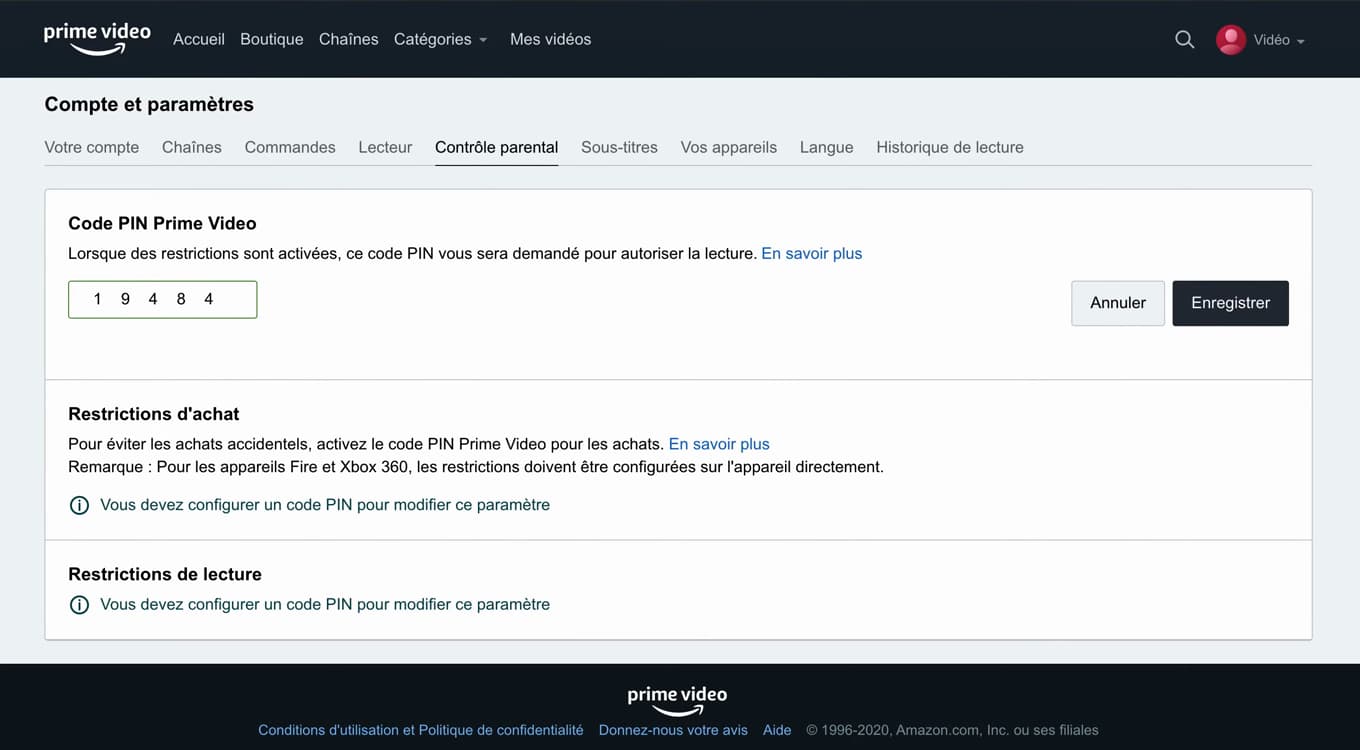
The PIN protects access to restricted content. Create a 4-digit "Prime Video PIN": it will be required to lift any restriction.
Set the restrictions
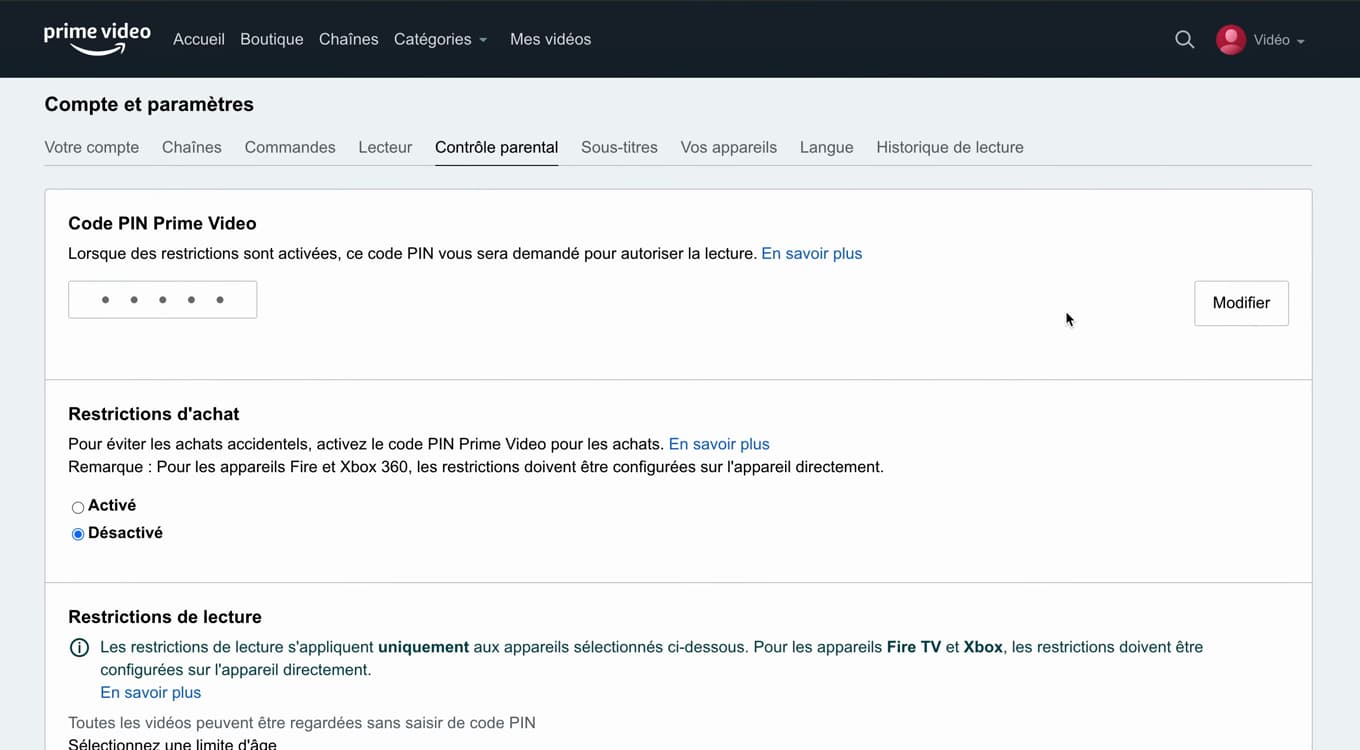
Restrictions block playback and purchases based on age rating. Check the age ratings you want to block under "Viewing restrictions" and "Purchase restrictions", then save.
Good to know
Prime Video now asks for the "PIN" to play any content above the allowed age rating or to make a purchase. The setting applies to "all devices" linked to the account.
Good to know
- Parental controls cover both "playback" and "purchases/rentals".
- The setting applies to "the whole account": TV, mobile and computer.
- Create "kids profiles" for a tailored experience right from the home screen.
Frequently asked questions
- Do the parental controls apply to all devices?
- Yes. The PIN and the restrictions apply to every device signed in to the same Amazon account.
- What if I forget the PIN?
- You can reset it from "Account & Settings" › "Parental controls" on the website while signed in to your account.
- Can I block purchases too?
- Yes. The "Purchase restrictions" section requires the PIN before any purchase or rental, to prevent unwanted spending.